
A product made of lists starts with its foundation
Studio is lists all the way down, so the first thing to fix was what every list is made of. Igor Varyvoda, who created Studio, had grown it fast with agents, and by early March it had the code you get when a product outruns its kit. On 4 March it had 35 files with their own tables, five separate list virtualizers and hard-coded colours in 57 components. The products table and the asset gallery were different components that behaved differently under the same hand.
Turning Studio into a DAM/PIM was my idea: build on the customers and image CDN the company already had, and grow standalone AI image tools into a workspace for merchants’ assets, then for their product data and sales channels. A workspace like that lives or dies by its lists, and I didn’t want to polish screens that would be rebuilt anyway.
We started this project without shadcn and migrated later. I suspect a lot of it was migrated badly. My goal now is to align our UI kit with canonical shadcn where possible, and list every change so we can decide what to keep.
The first attempt went wrong the next morning, and I threw it away and started again from a fresh branch, with a clean shadcn install kept beside the project as the reference. For a week components went back to canonical one by one: checkbox, dropdown, dialog, tabs, the sidebar’s tokens. On that base the kit grew into Sid-Kit, and by 14 May 79 of the 91 files in Studio’s ui folder were thin re-exports of it.
How the kit decides colours, depth and states is a story of its own, told in the Sid-Kit case.
Every list in Studio is one grid
The library, products, vendors and activity were the same problem, so they got the same component.
Let’s plan a nice grid component. It should support virtualization, customizable columns, grouping, sorting and so on. It will be used on the library and products mostly, also for vendors, and activity. Heck, we have many applications, actually.
An hour later the library ran on grid primitives, with tests. Two days later a separate table and gallery for products appeared beside it; three days after that they were gone, folded into the same grid. By May the grid was a package, and Studio’s screens switched to it on 1 May.
Products before the grid, on its first day and in June.
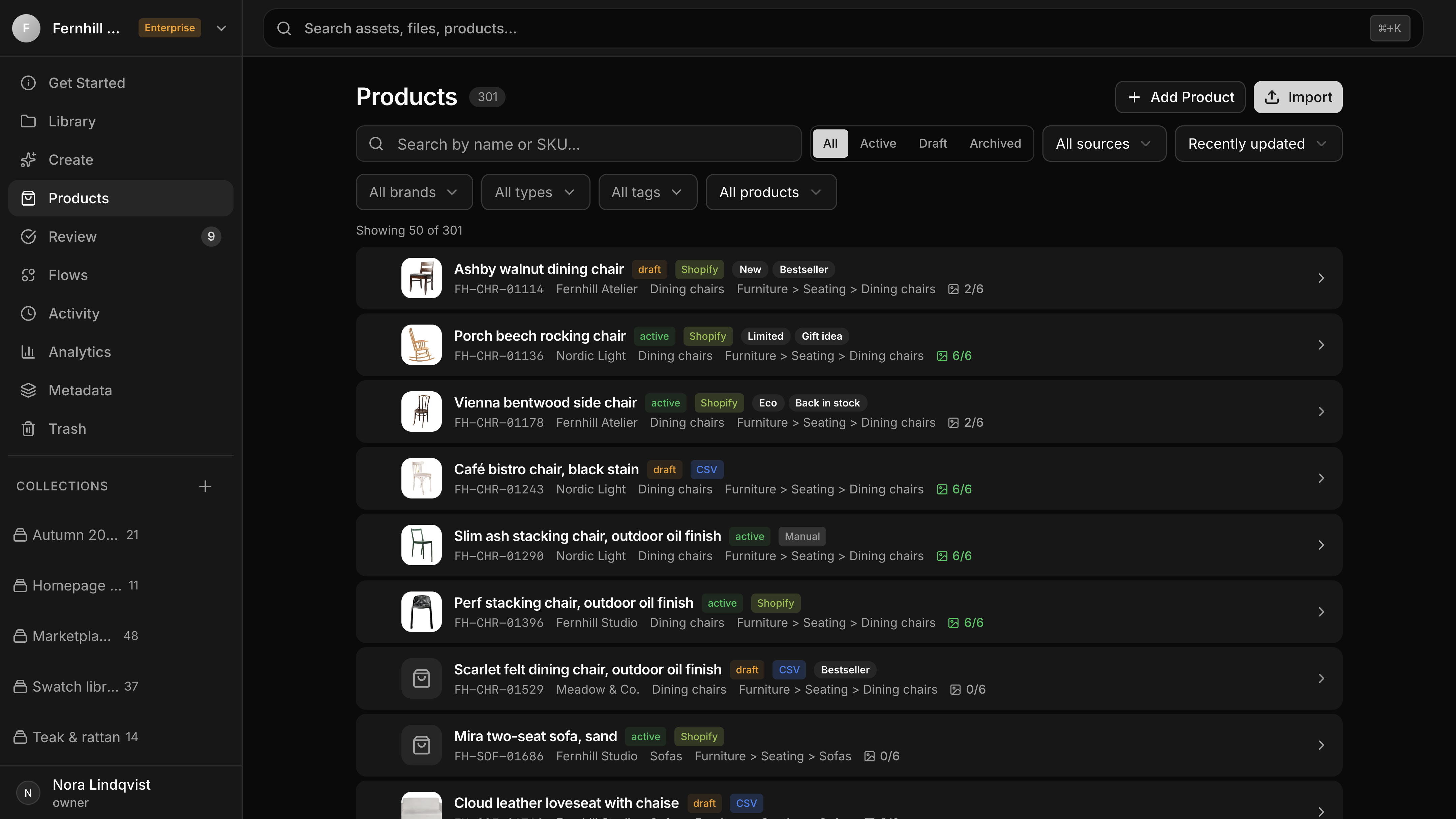
4 March
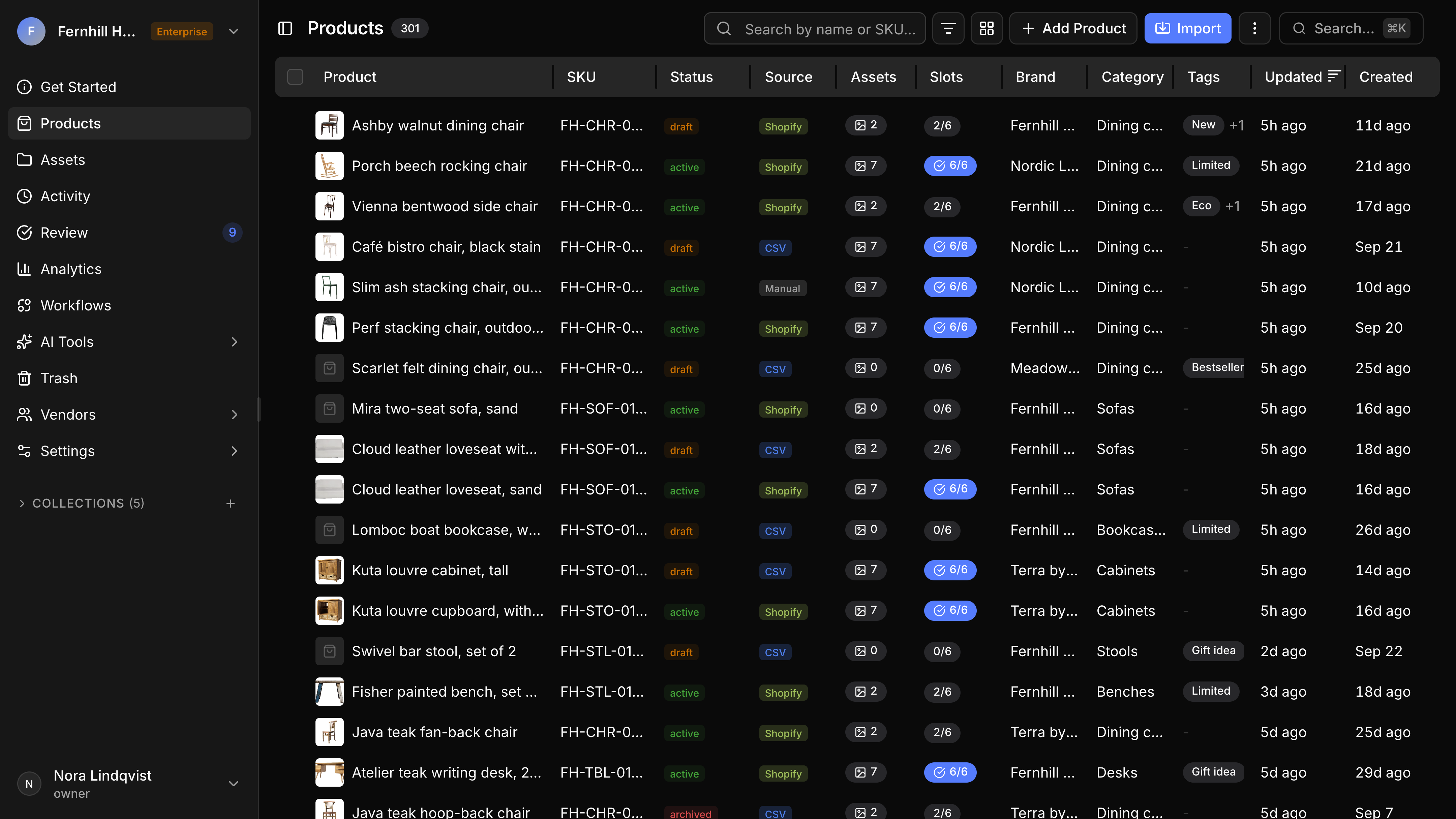
10 March
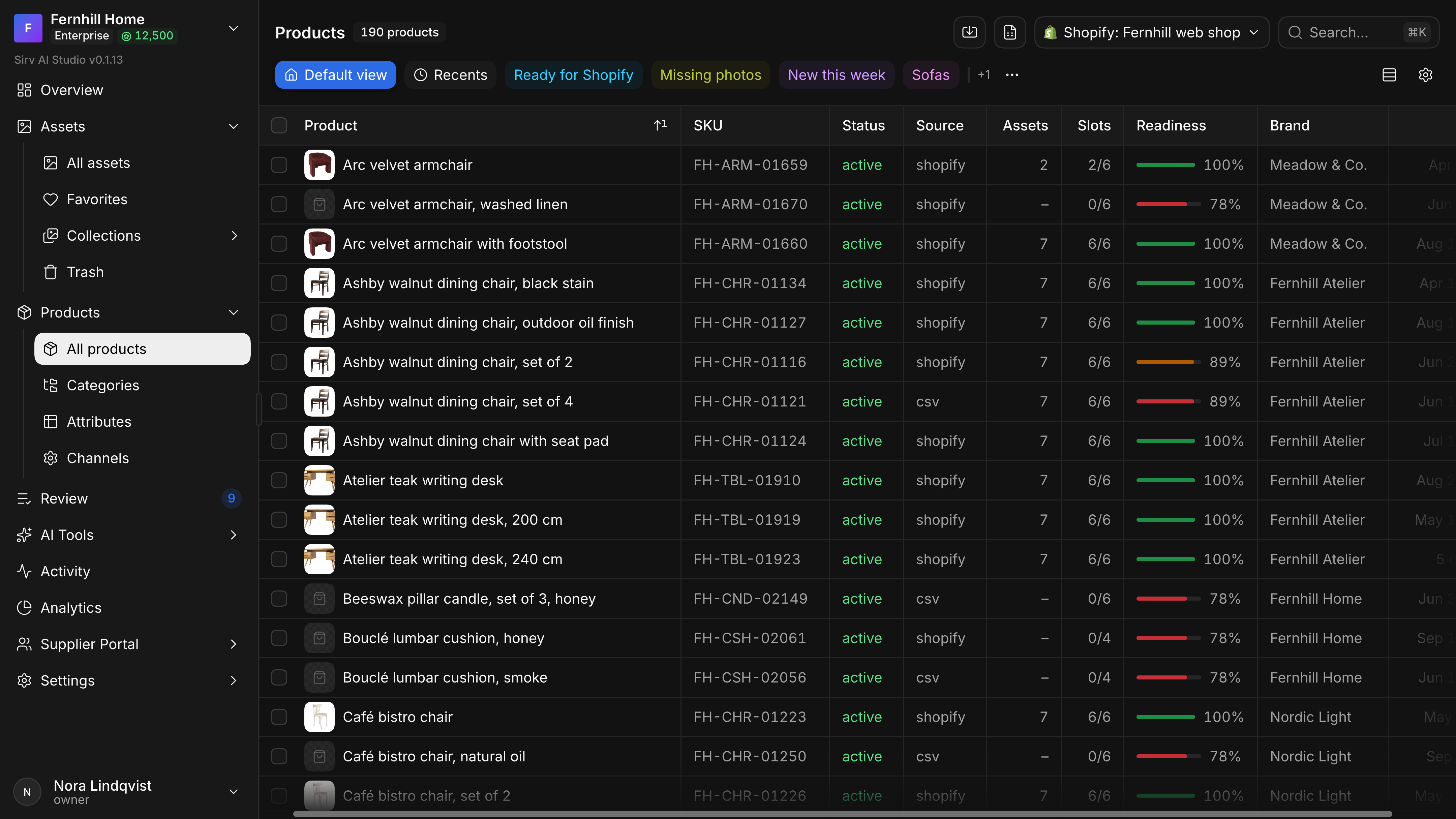
18 June
A grid is hard in a way a mockup doesn’t show. The one time I opened Figma for Studio, it was to cut cells out of paper, in effect: which line belongs to which cell, which border covers which, what a row is when its cells are pinned to different edges. After that the design happened in code.
Most of what makes a list feel right is small rules. Double-clicking a column’s edge resets its width and a second double-click lets it fill the free space. Pinned columns stay put while the rest slide underneath, with a shadow only where something is hidden. The keyboard and selection follow a file manager, and when the spec I’d written for that was wrong, I said so: Escape should leave a clean slate from where the cursor is.
Moving a column was the hardest of these. The first version, on 5 March, used a drag-and-drop library. It couldn’t move pinned columns or show the whole column in flight, so on 3 April it was replaced with plain pointer events and one rule: a column moves when its leading edge crosses the centre of its neighbour. On 8 April a full-column ghost and an animated landing came in, and on 9 April I reverted them: too much motion for something the hand does dozens of times a day. The ghost came back on its own on 28 April, without the choreography.
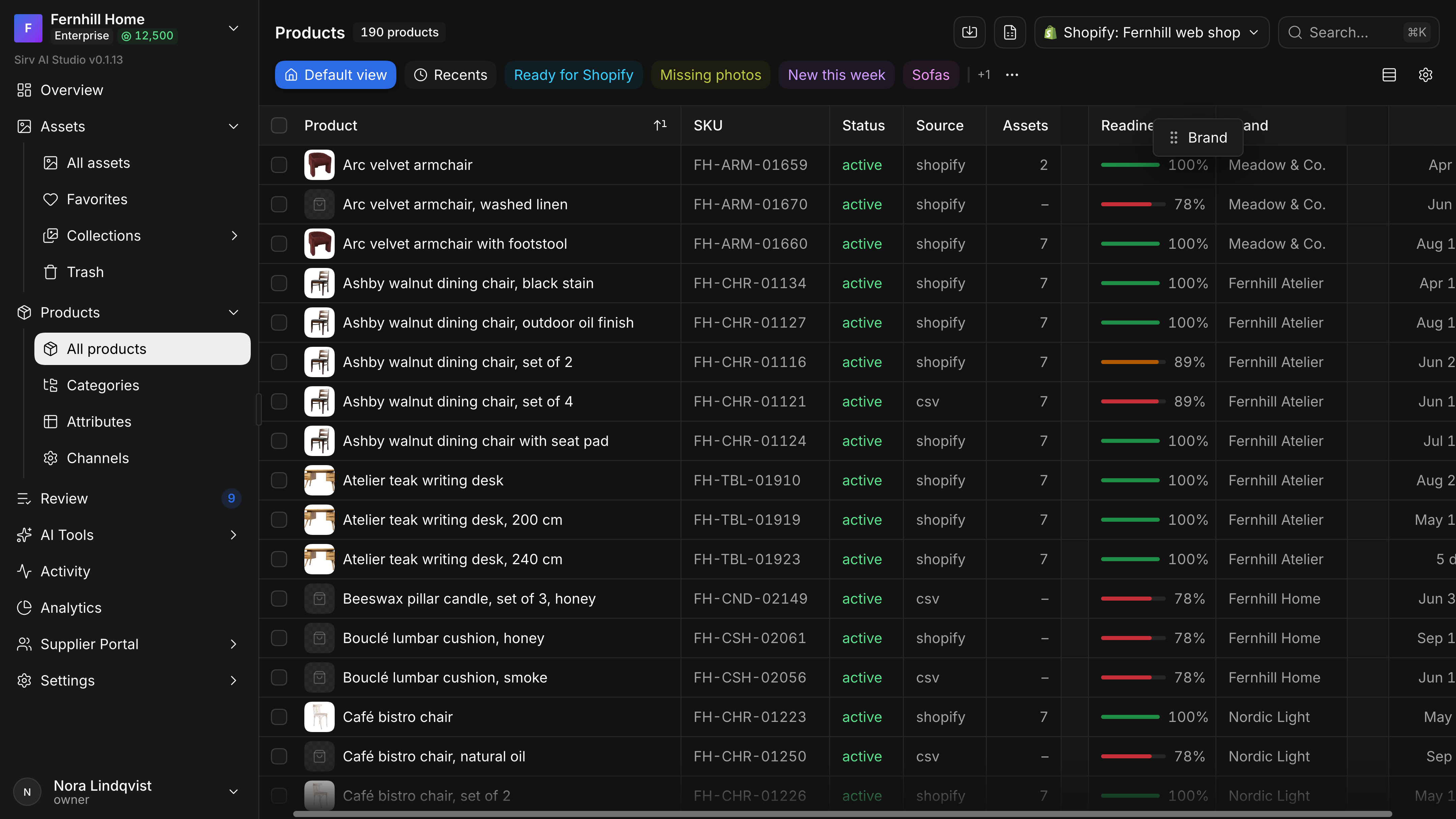
A column in flight.
Sorting came last. On 7 June Igor’s review blocked my secondary sort because it existed only in the interface. So sorting by several fields became part of the grid’s contract, which each screen’s data source implements, and its levels became a list in the view sheet with directions in words, “A–Z” or “Newest first”, rather than arrows.
The surprise was width. A table in Studio never knows how wide it will be: the sidebar can be dragged wider or folded away with an animation, a details panel or the view sheet can open beside it, and every column can be fitted, fixed or set to fill. Each of those changes the width of every column at once, and early on each one made the table stutter. Making it keep up took more work than any feature here. Underneath it is one geometry for the table: column widths, pins and fills worked out together and cached, so a view that comes back unchanged recomputes nothing. Fitting a column to its content then needed to know how wide text really is, which no library measured well enough, and middle truncation, which keeps both ends of a file name or an ID, needed the same measurer. Both became packages of their own.
The grid’s internals, the geometry cache, measuring and truncation, selection and performance, are in the Data Grid case.
Loading keeps the shape of the table
A list that is loading should already look like the list. In April Studio’s grid flickered between rows, empty space and a spinner whenever it scrolled fast or refetched.
On 23 April I asked for a ghost grid that was more than cell borders, with skeleton chunks where the values would be. The first version painted them with a repeating CSS gradient, and I asked whether that could round the chunks’ corners. It couldn’t.
Nah. Try SVG. You get animation for free there too.
The result is what we called the carpet. Its geometry comes from the live grid: column widths, flexible columns, pinned edges, the header and the row height. Each column draws one SVG strip of chunks under every row at once, and real rows simply cover it as they mount, so there’s nothing to swap and nothing to time. Ten minutes later I asked for random widths for the text chunks, so the carpet read as text rather than as a pattern. A week later the gallery got its own carpet from the same numbers: gaps, card sizes and how cards stretch.
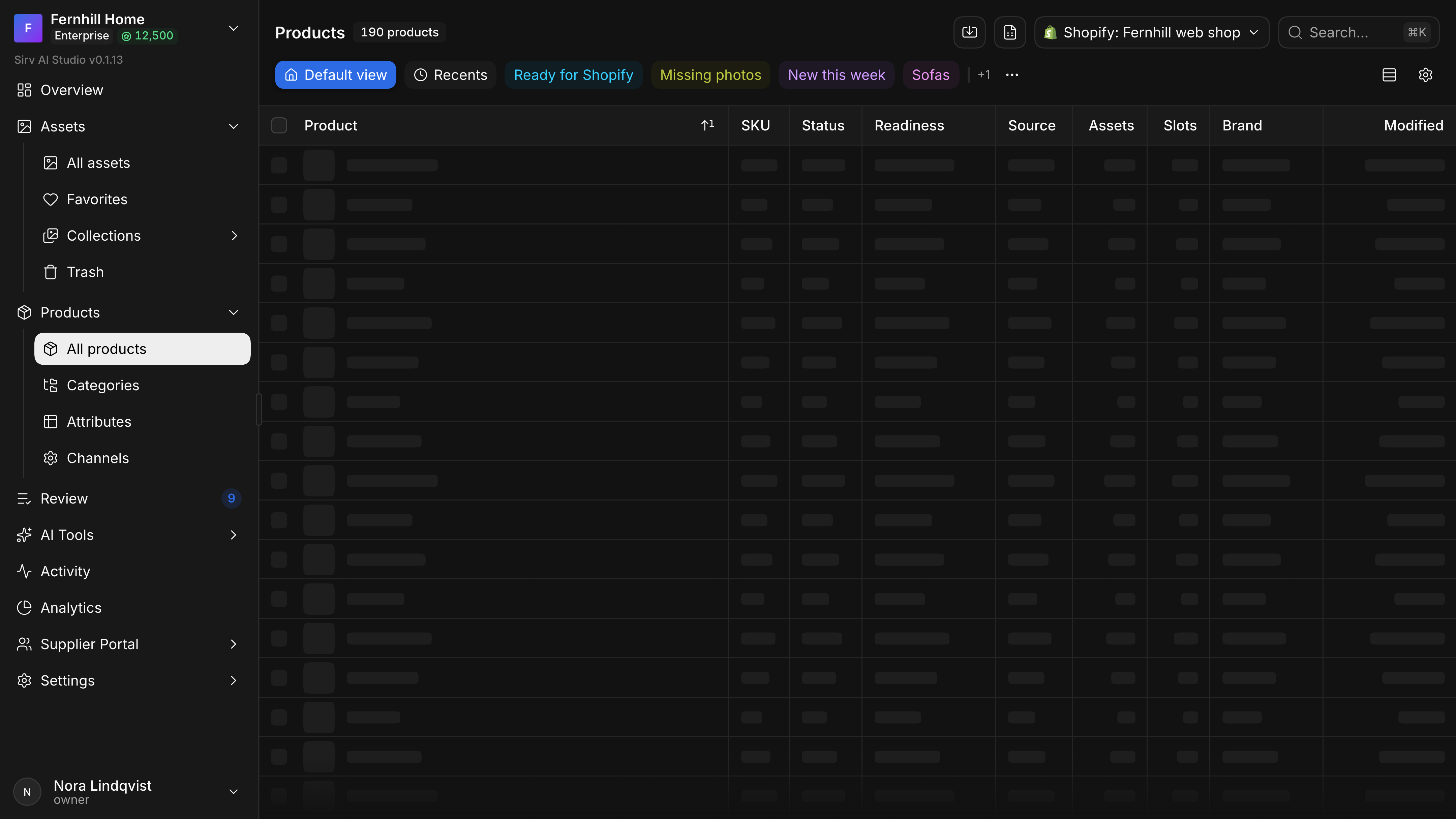
The carpet, held in place from the bug button.
Loading itself stopped blocking. There’s no overlay; the scrollbar knows the server’s full total from the start, a jump far down loads that range directly, and the end of a list fades into the background with a spinner instead of ending in a hard edge.
A bug button puts the app in any state
A loading state that lasts 200 ms can’t be designed by refreshing the page and hoping to catch it. The tool for that started as something else. In April lazy loading took weeks of experiments with scroll speed, overscan and when to preload the next page, and the numbers had to be watched on a live list. So on 20 April the grid got a corner of plain text on development builds: rows loaded, rows mounted above and below the viewport, the visible range and the preload threshold.
Two days later the numbers turned out to be the smaller part.
Let’s widen the role of the virtualizer panel and make it a debug tool. I want to drag it around the screen by hand. And I want a switch for the page’s loading states, to look at the table’s skeleton and poke at it with the inspector.
By the evening it was a small window floating over the app, which folds into a round button with a bug on it and can be dragged anywhere on the screen. From that button any list screen can be held in one state while the real page stays mounted behind it: the route’s first shell, the carpet alone, the overlay that covers the list while its layout catches up, a refetch over the body or over the whole table, the indicator for a range still loading, or ready. The carpet chapter above was designed this way, in each state side by side with the real rows, until rhythm and optical weight matched.
The inspector also reads out what the grid is doing. It shows which rows are mounted, and whether the column geometry was measured again or taken from the cache, with the keys that decided it. It switches off React’s StrictMode, Sentry, session replay and tracing one by one, names the commands for a local production build and for a dev server without hot reload, and turns on routes still in development. Those switches came out of late April, when part of what we’d been fixing turned out to be the dev build itself; the geometry readout is how the column-width cache was checked in June.
The bug button, folded and opened.
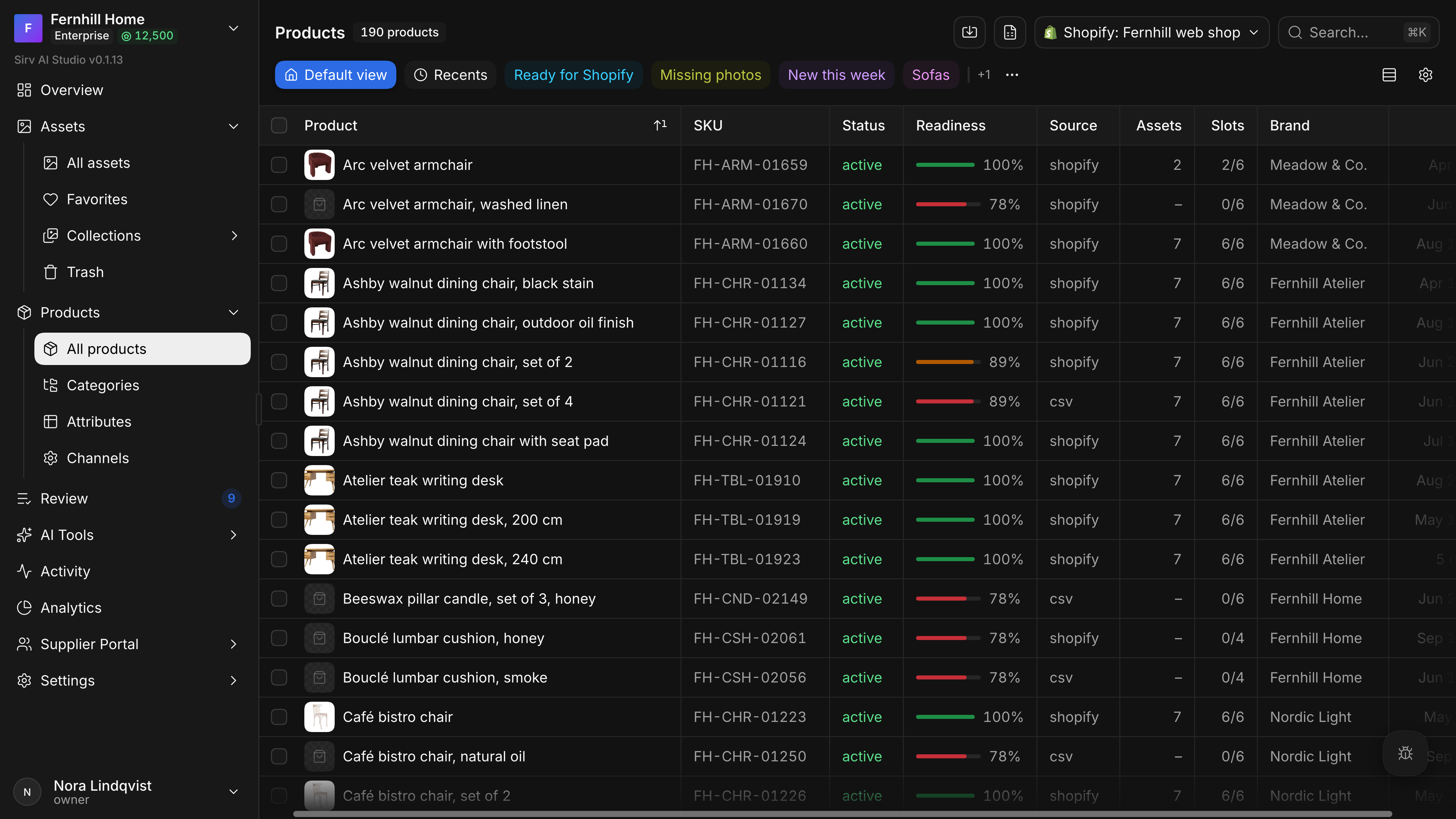
Folded
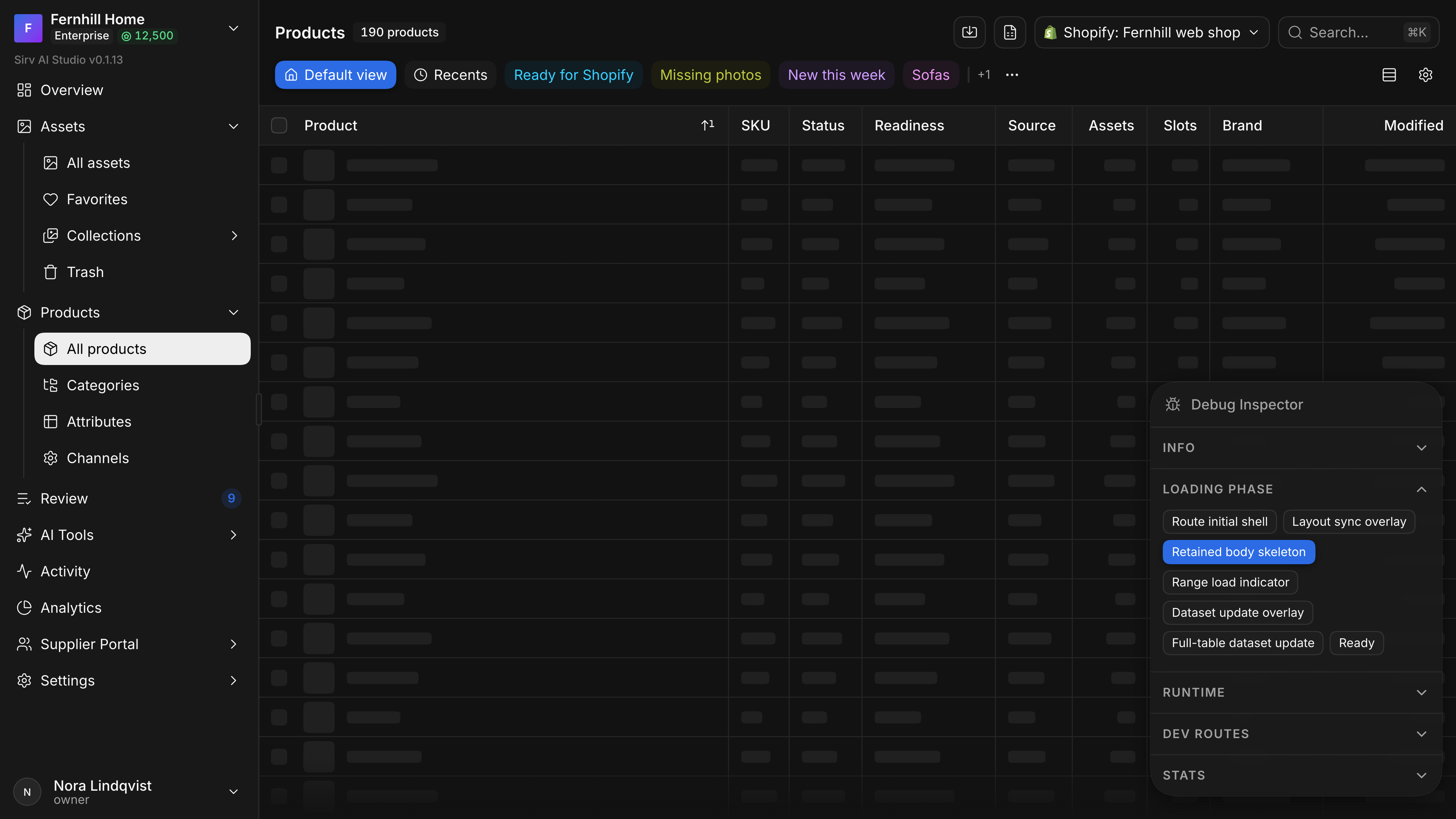
Opened, holding the carpet
The handles are the same for a script as for my hand, so an agent could put a screen into a state and photograph it. The pictures of loading states in this case were captured the same way.
A saved view is a button, not a tab
A view is a way of looking at the same list, so it has to be cheap to make, obvious to change and impossible to lose. Igor built the first saved views in late May: saved filters shown as tabs above products and assets, which could be pinned and reordered. Column layout was left for later.
On 5 June I took them over with one idea: one sheet configures the whole view, filters, sort, grouping and columns, and the grid behind it changes as you go. Simple filters come first, laid out like an online store’s, with a query builder for the rest; switching to the builder loses nothing, and switching back warns when it would.
Four days in, the views themselves had to change.
And these shouldn’t be tabs at all. Tabs aren’t an interactive component. This is something button-like.
A view is a whole way of looking at the list, not a saved filter: its filters, sort, columns, their order and widths travel with it, so switching from Ready for Shopify to Missing photos changes what the table shows as well as which rows. Views moved into a second row of the page header as small buttons, plain for the others and flat for the current one, with actions on right-click instead of a menu on every button. Each custom view takes its colour from its own key, so the same view always has the same colour. I tried tinted shadows and coloured dots first and threw them out.
Tabs in May, then two views in June with columns of their own.
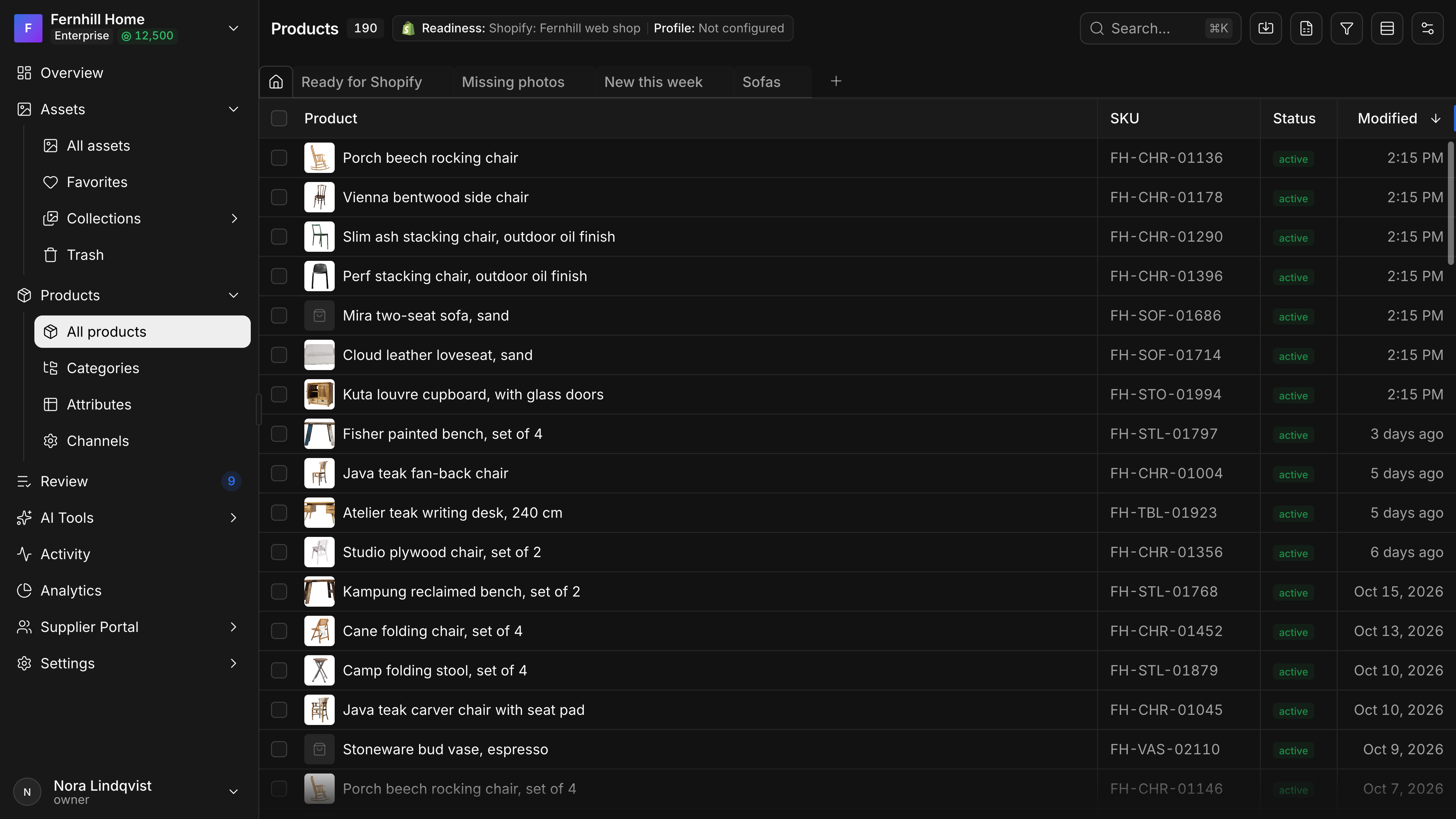
25 May
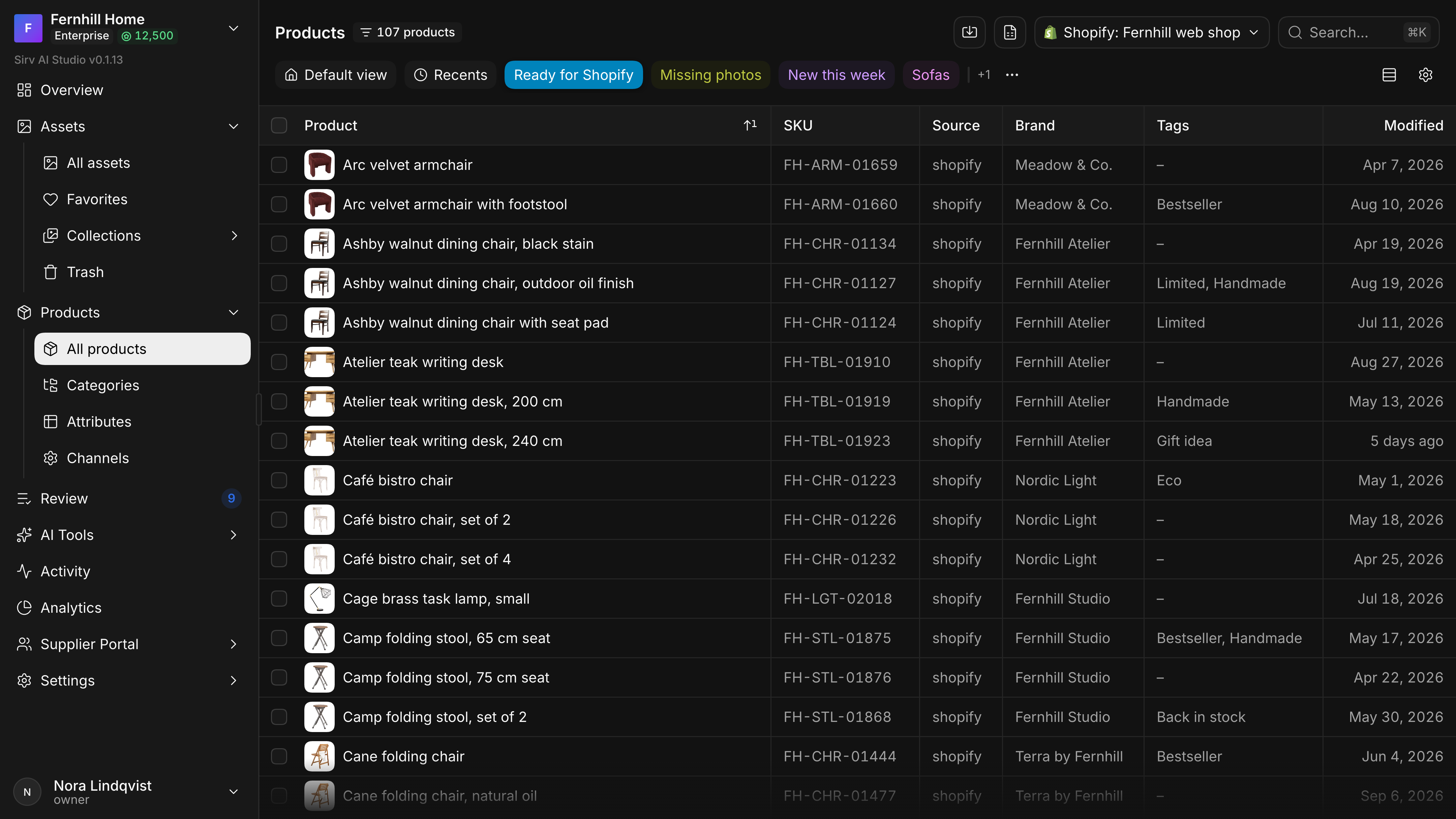
Ready for Shopify
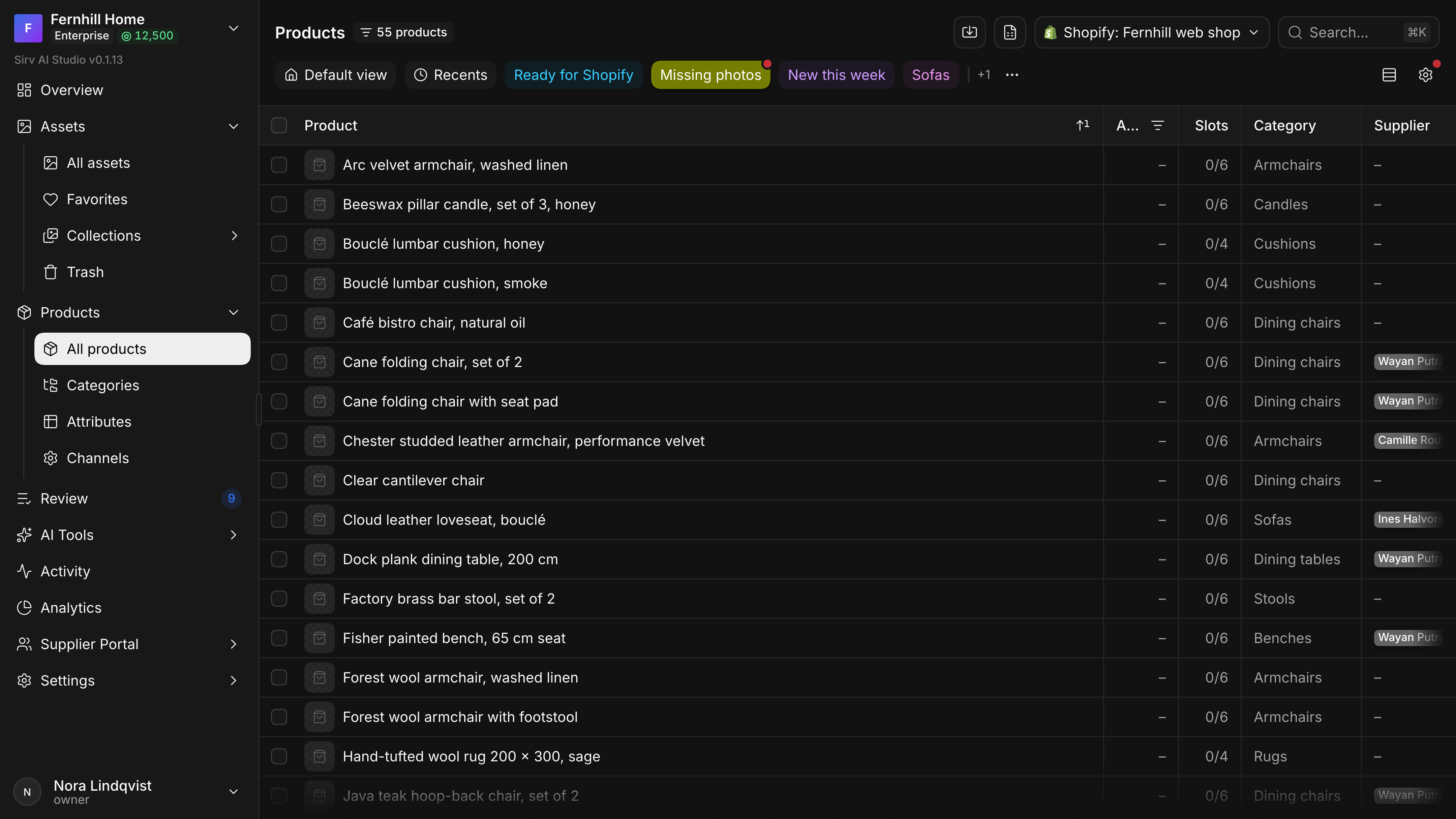
Missing photos
The hard part was state. A view you’ve changed but not saved keeps a dot, even after you leave it for another one. Changes apply live, so Done just closes the sheet and Cancel reverts. A changed view compares itself with what’s applied for its dot and with what’s saved for Update. Reset returns to defaults and Revert to what was saved, and they’re different buttons because they’re different promises. Whether a list is a table or a gallery lives in the address, not in the view: it’s the reader’s choice, not the view’s. Column widths, fixed, fitted or filling, joined the view in the last week.
One sheet for the whole view, applied as you go.
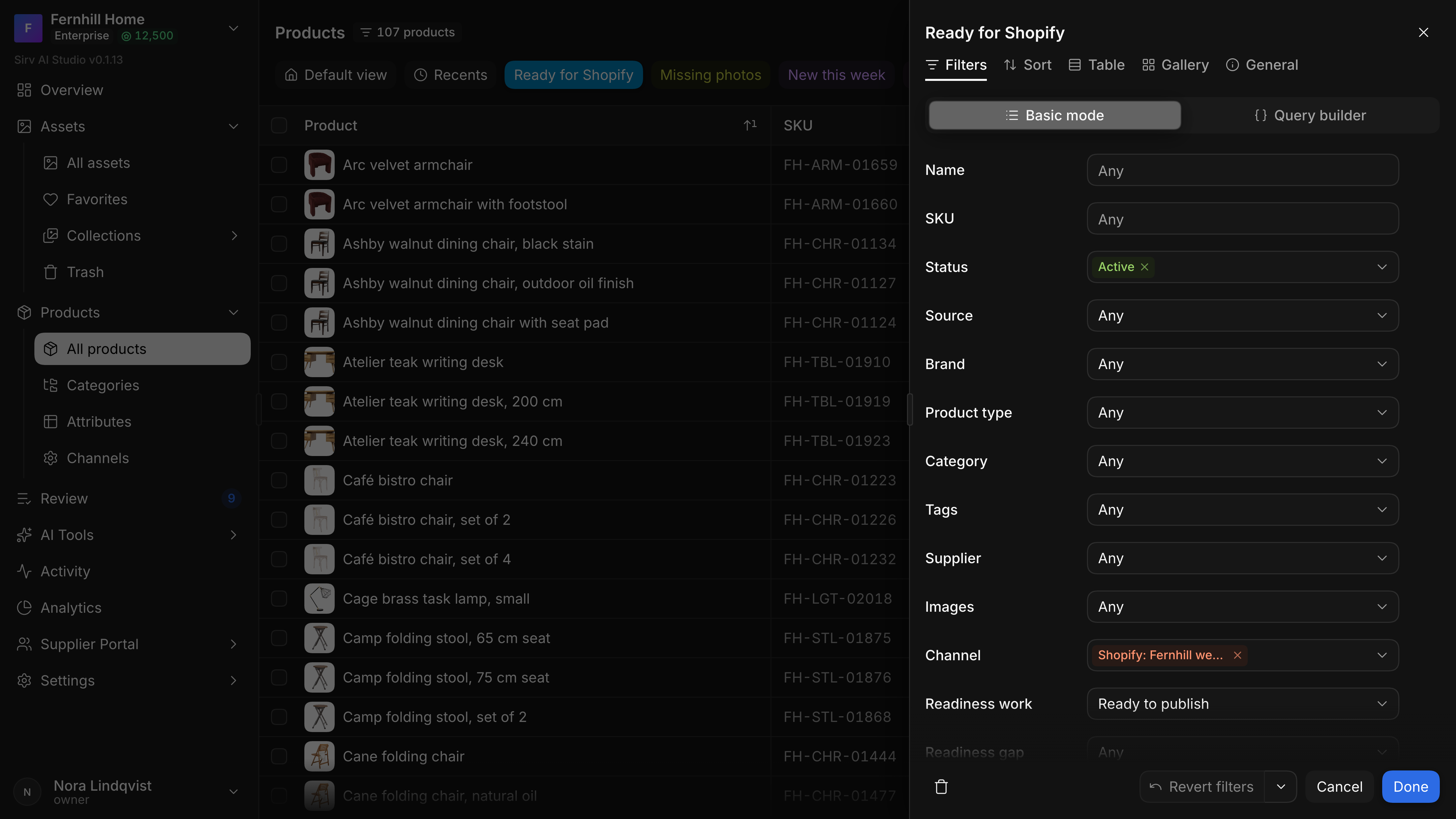
FiltersSimple filters first, a query builder a tab away.
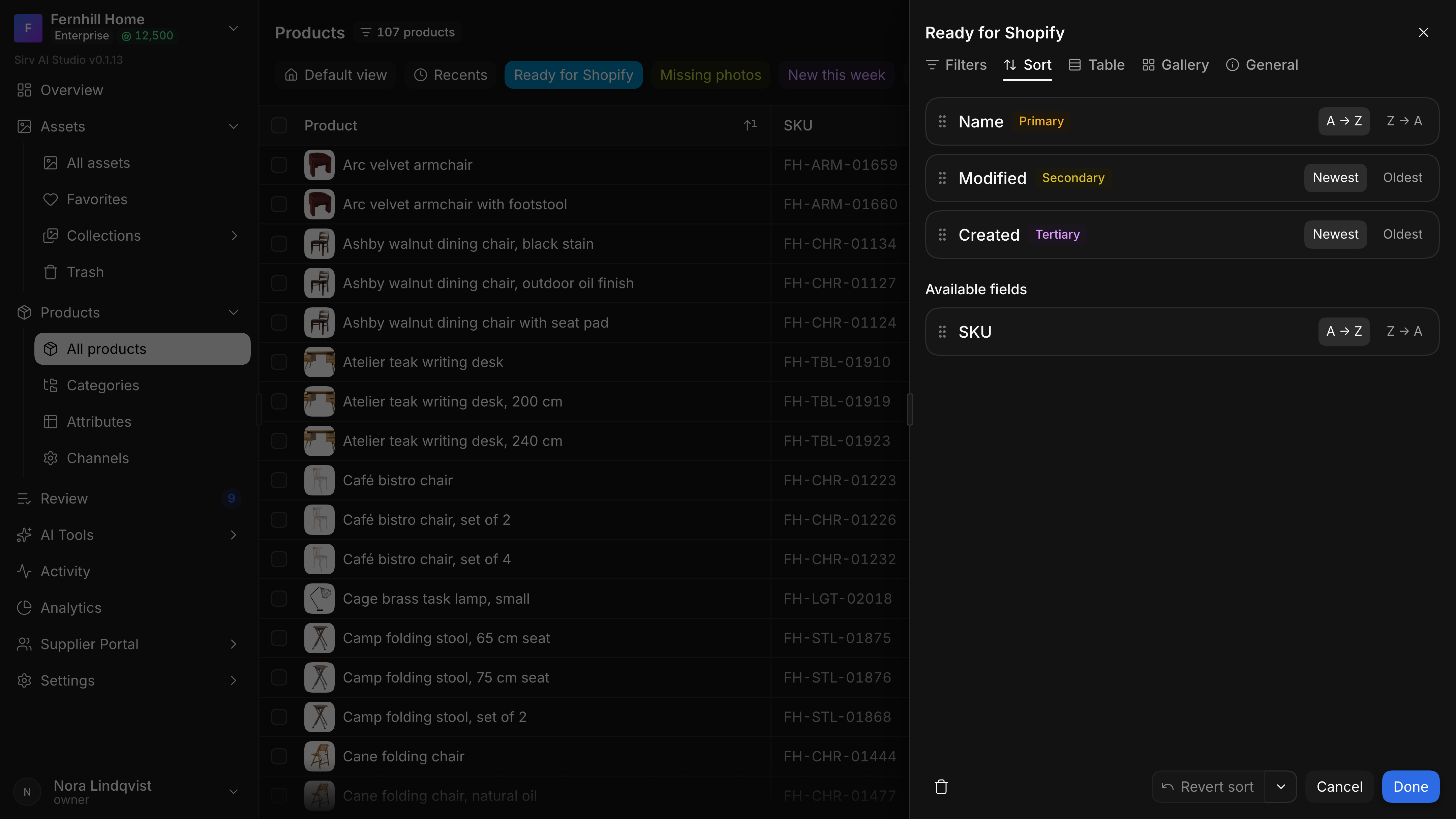
SortLevels in order, directions in words.
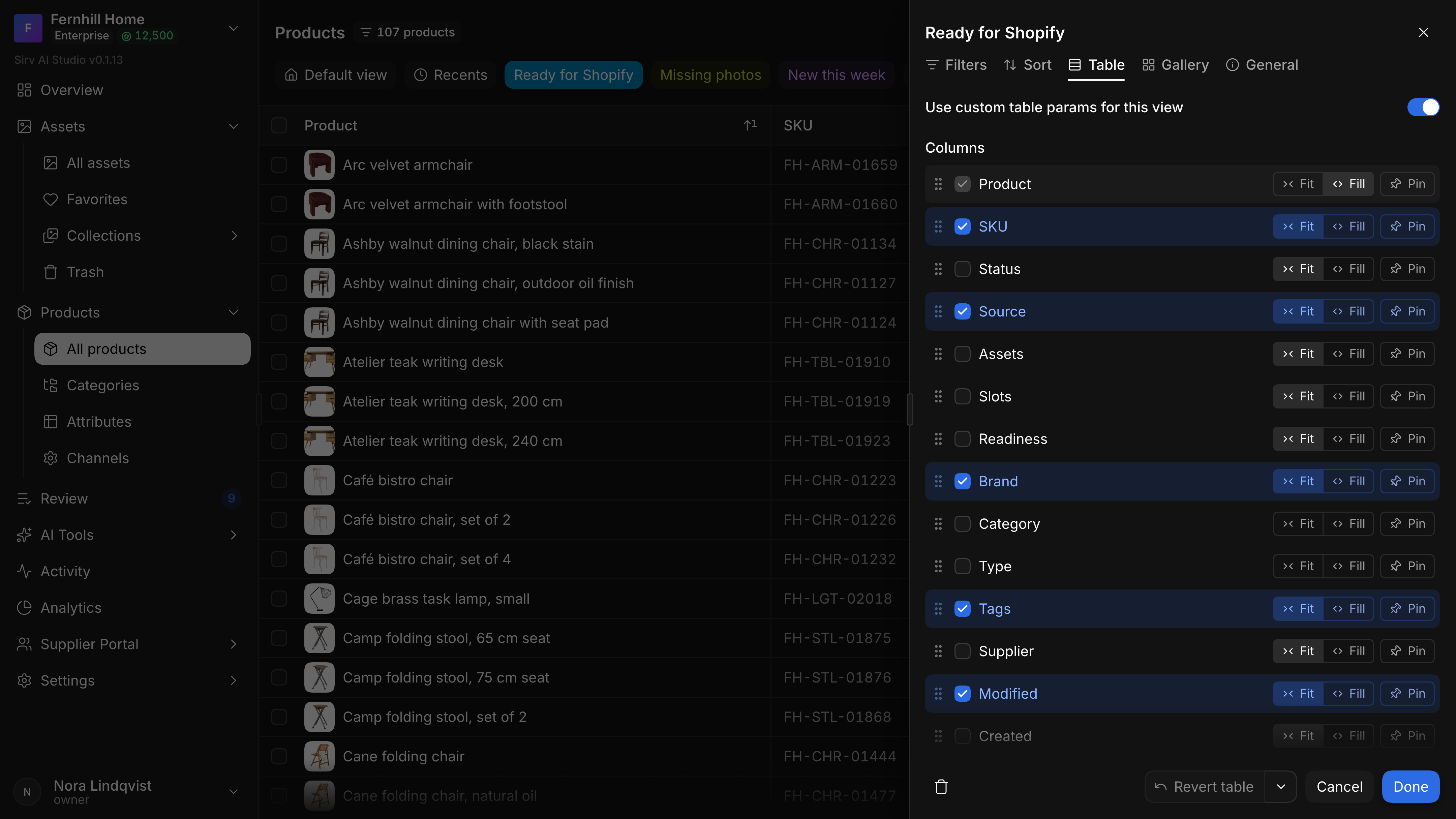
TableColumns to show, fit, fill or pin.
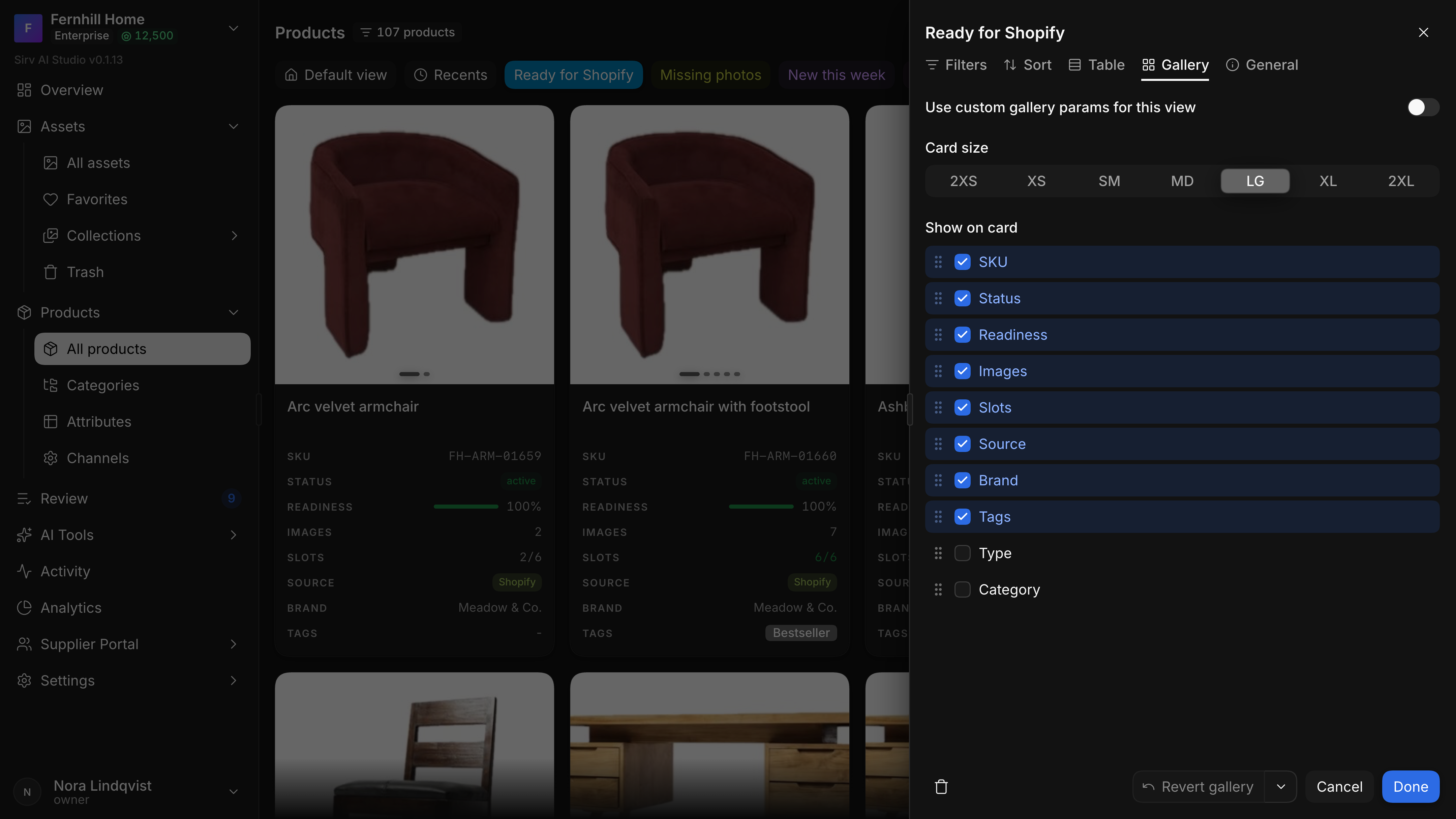
GalleryCard size and what a card shows.
The query builder was the other half of the Filters tab. Igor’s first version in May was a fixed OR of AND groups that opened on a list of starter presets. I gave every group and the whole query an explicit ALL or ANY, so single conditions and groups can sit side by side, put each condition on two rows, the field and operator above and the value below, and removed the presets: the builder opens empty, with only the buttons to add a condition or a group. Conditions and groups drag between each other. Each field brings its own operators and its own picker, so a category is chosen from the tree and a date from a range with presets such as the last 30 days, and on the server each condition becomes a piece of SQL. Basic mode and the builder edit the same rules, so a view built in one opens in the other.
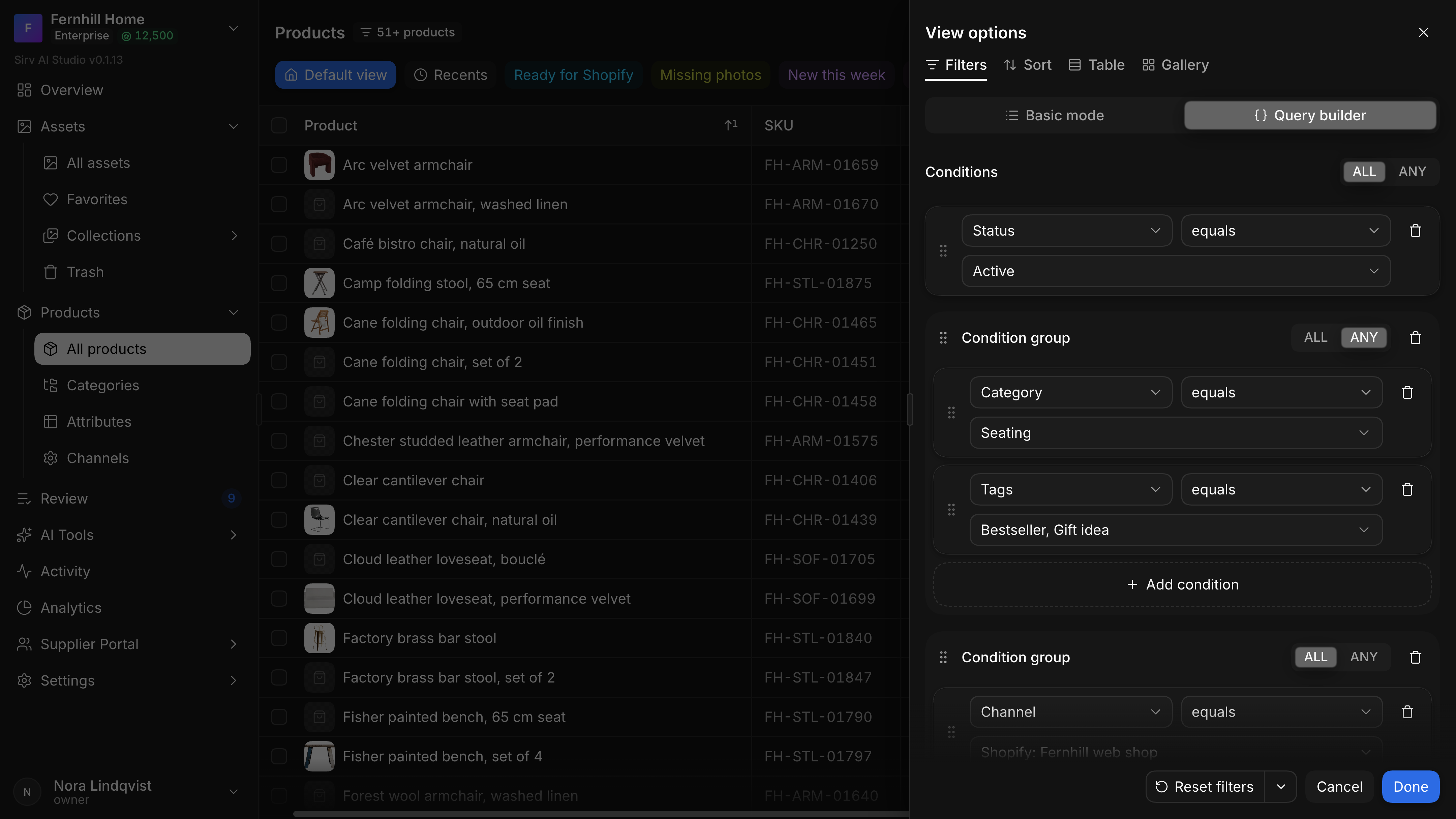
Active products in Seating or tagged as gifts, checked for Shopify.
About 100 of my commits in June were views, filters and sort.
Templates describe the shoot and its file names
A product page needs particular pictures: a front view, a back, a detail, maybe a video. Studio’s first answer was Igor’s slot templates, where each template holds an ordered list of slots with a role, a label, an example picture and whether it’s required, and vendors’ uploads land in slots by the SKU in their file names. By March they had grown into a long settings page for vendor shot lists.
In mid-March I started two prototypes side by side, in a new Templates section: naming conventions and media templates.
Photos arrive from studios and suppliers named by someone else’s rules, and Studio has to know which product and which shot each file is. On 13 and 14 March I built naming conventions: a pattern such as {product_id}[-{row}]-{frame}.{ext}, where braces mark a variable and square brackets an optional part. While you type, the pattern is parsed and each variable is drawn as a chip coloured by its type: digits, a fixed set of values, a sequence or free text. Typing a brace opens a list of the variables you can use. The same pattern compiles into a matcher, so the field that defines a mask also shows how it reads a real file name: which part became which variable, what it was normalized to, and whether a whole list of pasted names matches. Conventions for Amazon, Walmart, Home Depot, GS1 and Sirv’s own 360 spins come built in.
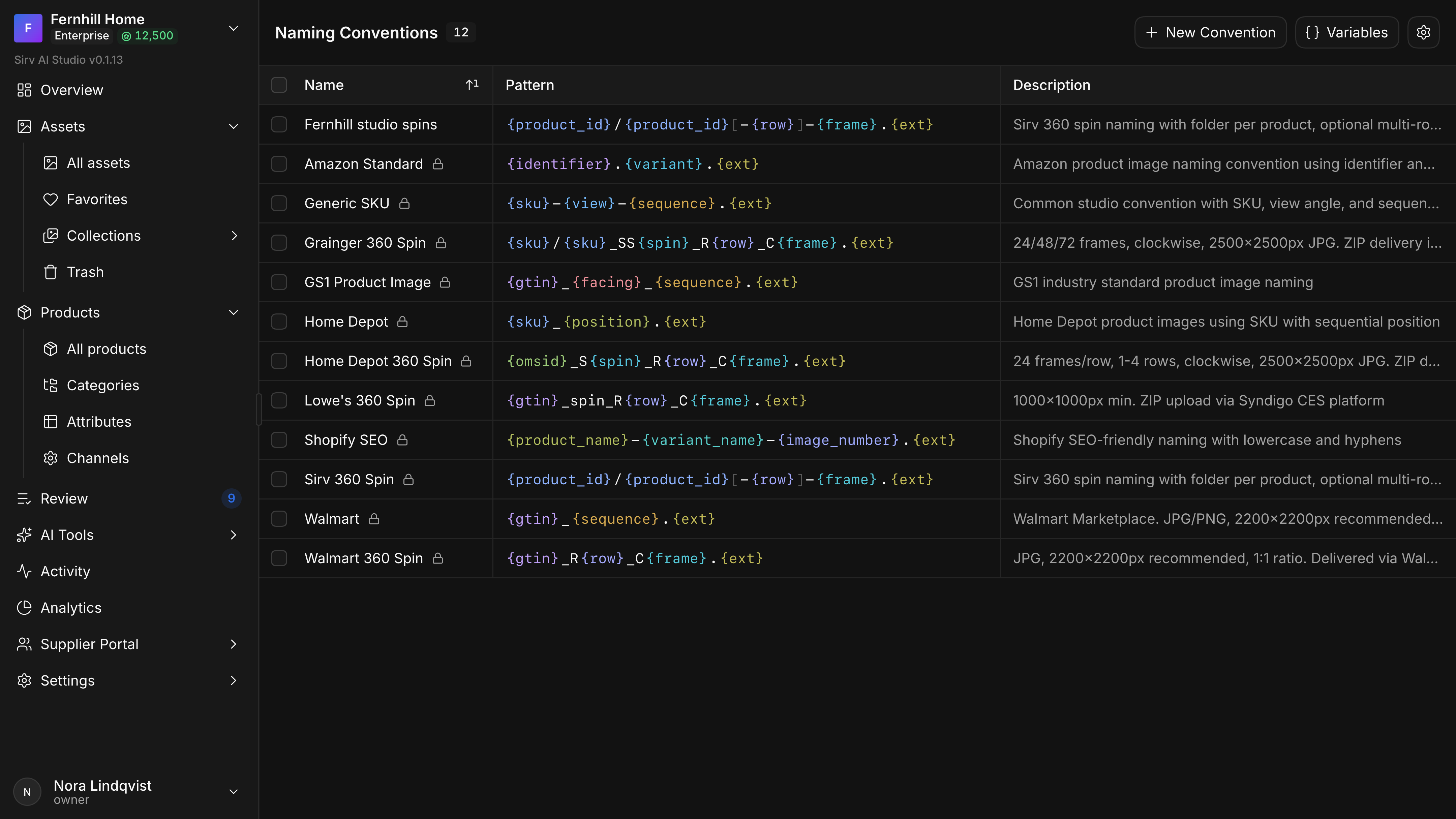
Patterns drawn as chips.
A naming convention, tab by tab.
![A convention named Fernhill studio spins on its Summary tab: name, description, the filename pattern {product_id}[-{row}]-{frame}.{ext} in coloured chips, the path pattern {product_id}/, and short lists of validation and normalization per variable.](/media/6648b81f65f7b09b17b48beeb3a1893b76abc6243775bfbf10d5967442bbf310.webp)
SummaryThe whole convention at a glance.
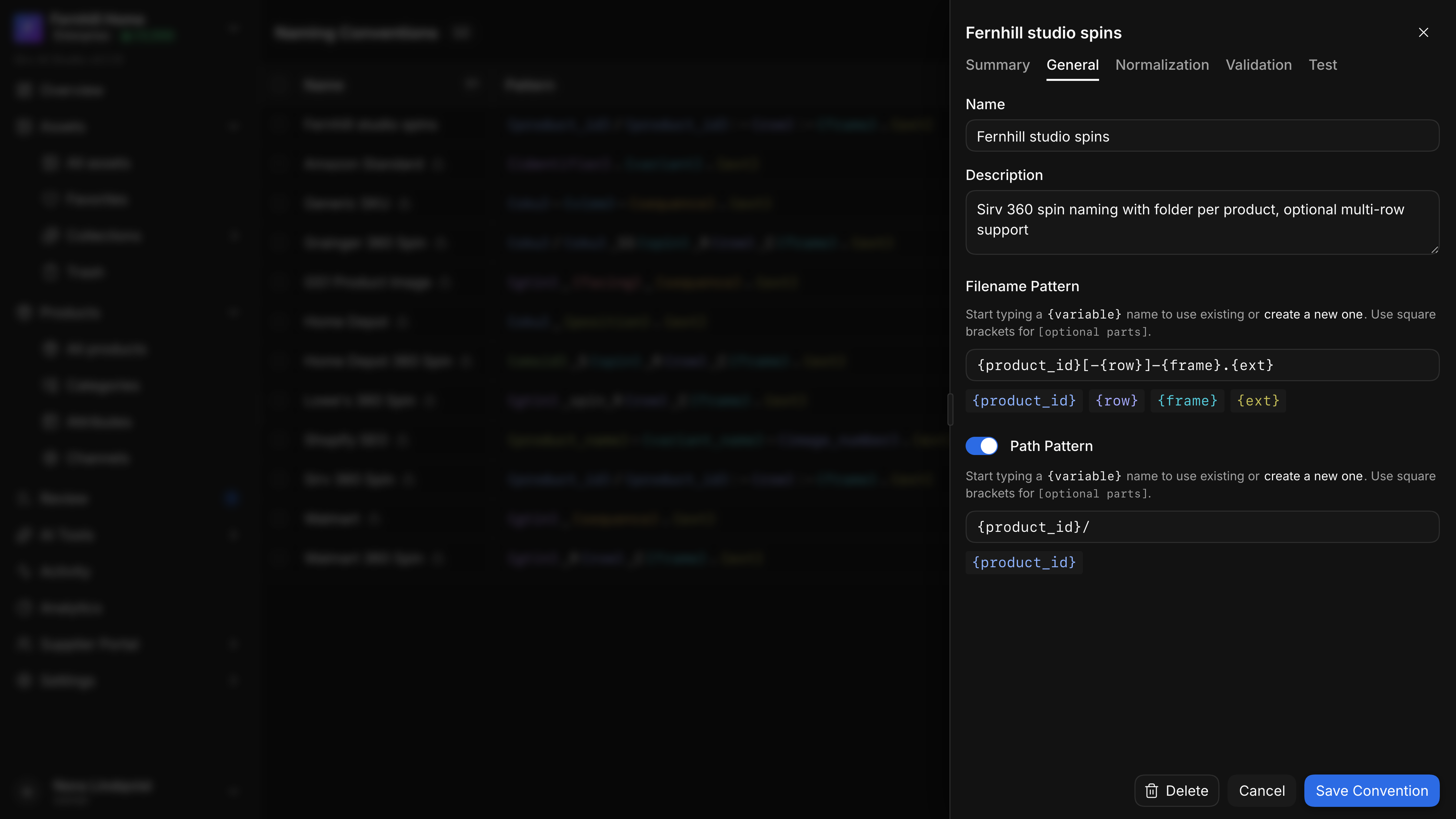
GeneralThe pattern, typed and parsed.
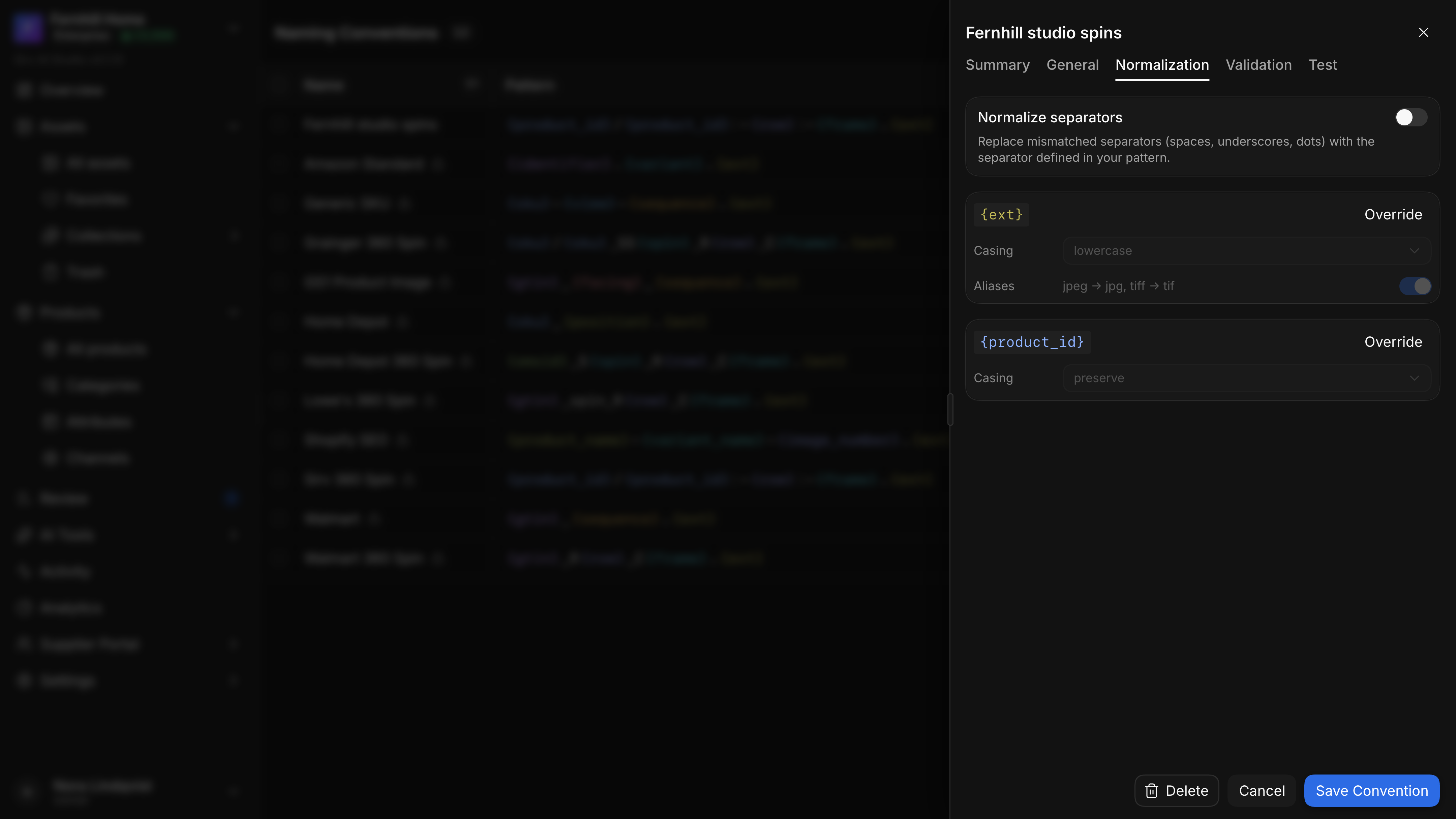
NormalizationCasing, aliases and separators.
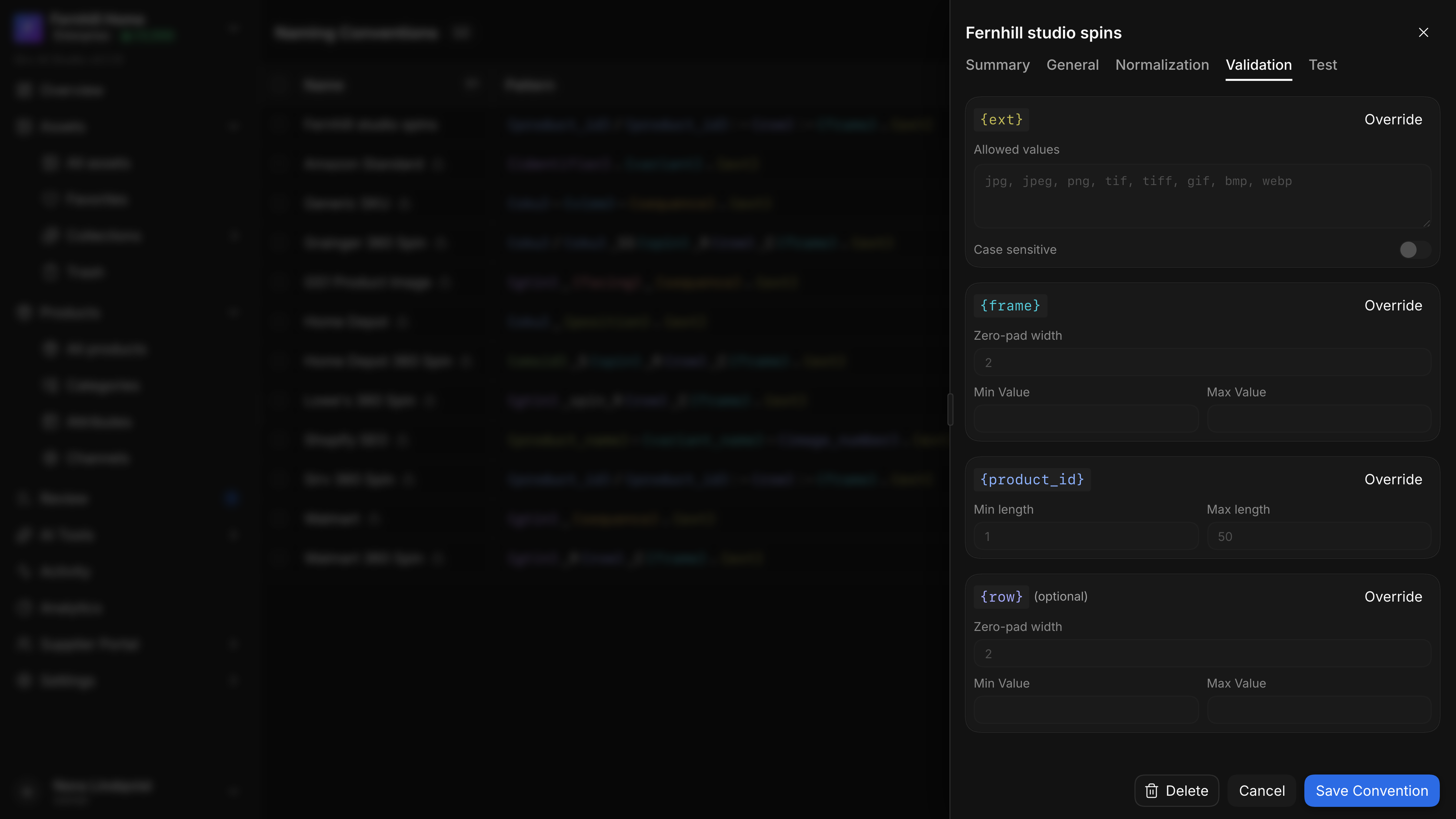
ValidationWhat each variable may hold.
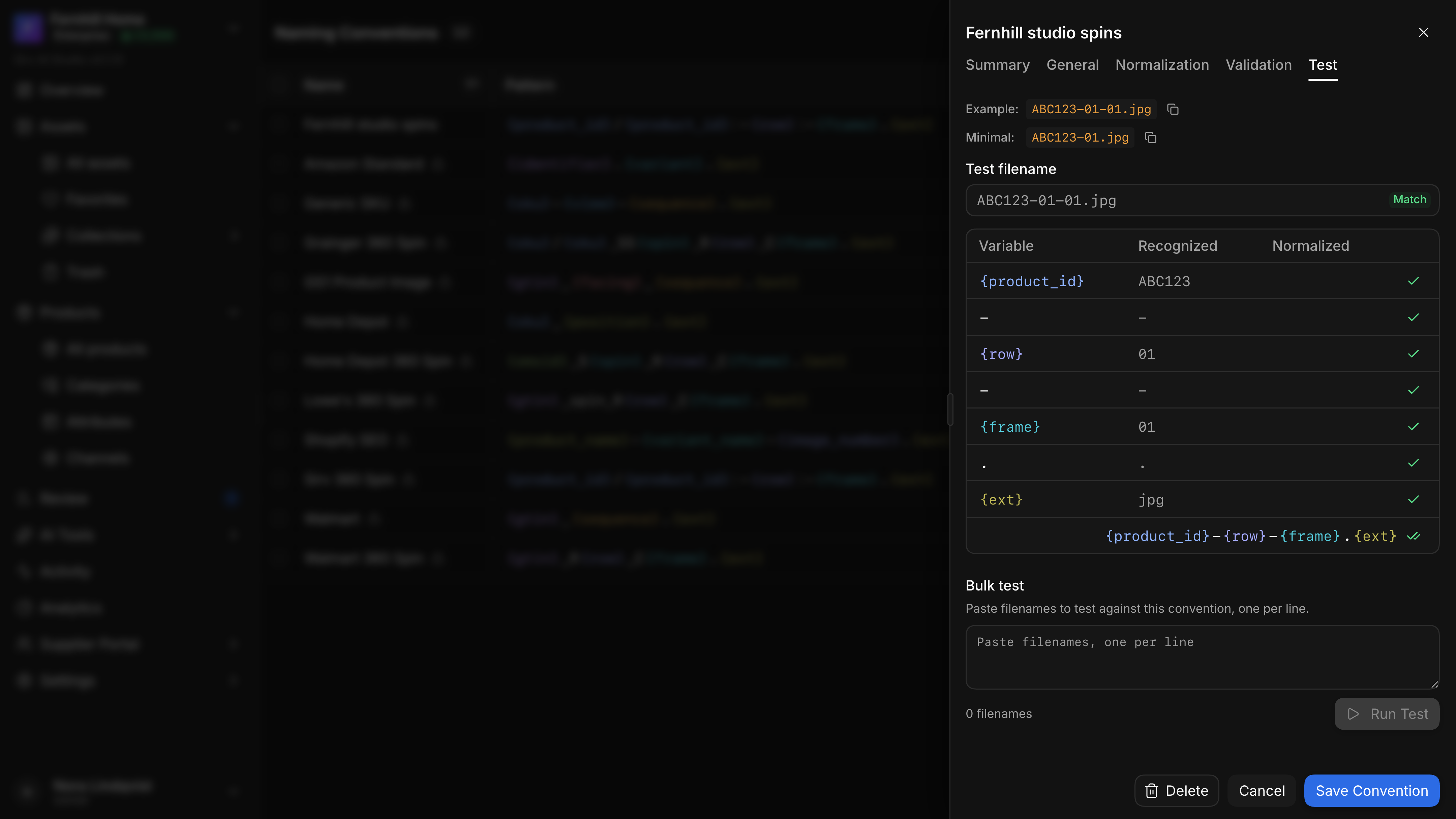
TestOne name, split into its parts.
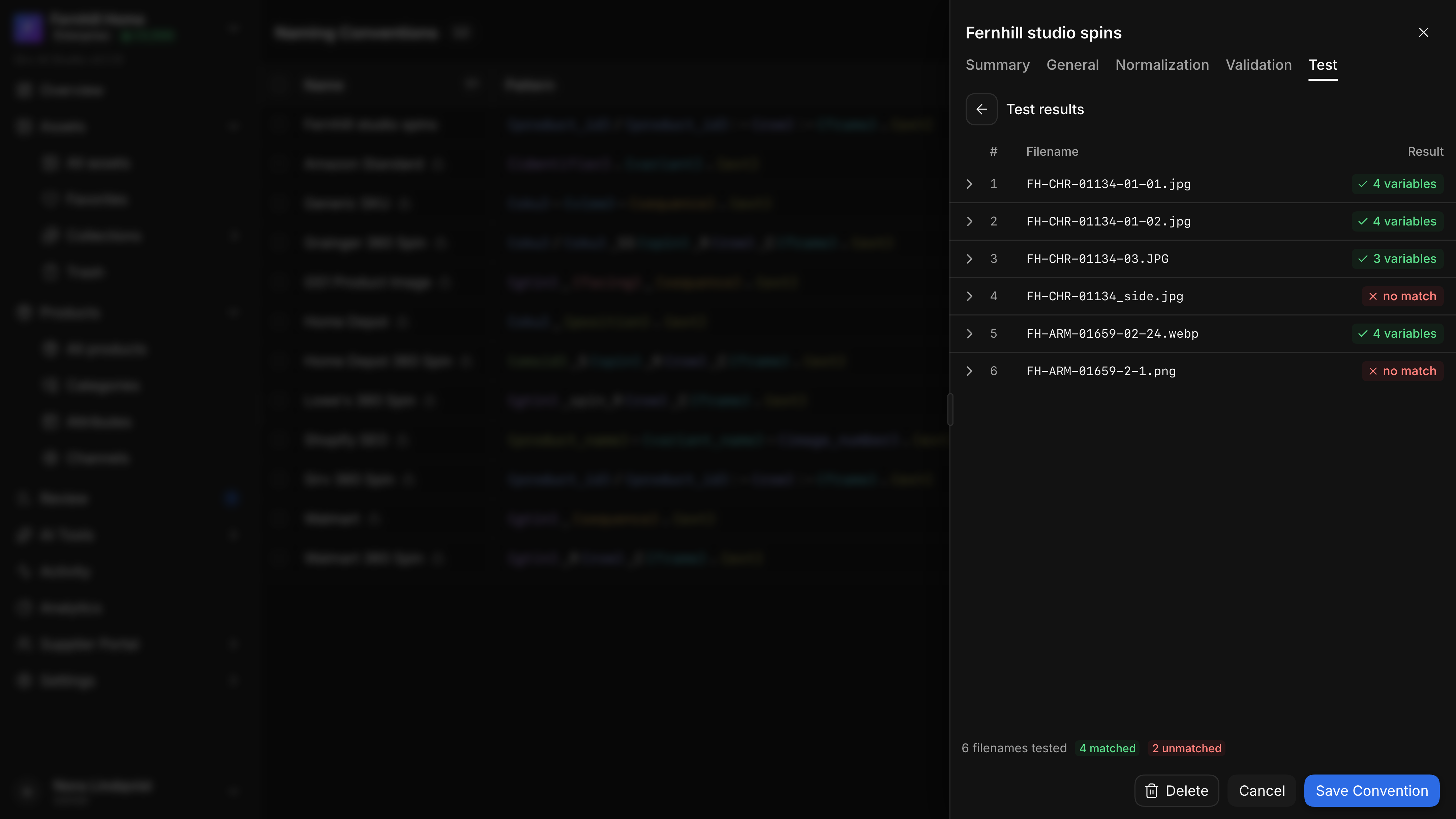
Bulk testFour of six names match.
On 18 March I built the second prototype, Media Templates, without touching the vendor portal. Its list looked like the other template lists in Studio and its editor opened in a sheet. Within an hour I cut it down.
Remove the tabs. There isn’t enough content to justify this layout. Just the template’s name, a description and the slot configurator.
What made it different was groups. A slot has a media type, image, video, 3D, spin or document, its own specs and reference photos. Slots can sit in a group with a rule, “At least 1”, “At least 2” or “All 3 required”, because a catalog often needs any two of four angles rather than all four. Slots drag to reorder and between groups. I wanted no visual noise for a simple rearrange, so the target group was tinted only when a slot crossed into it; a day later I removed the tint altogether. Escape cancels the drag rather than closing the sheet. In the list, each template shows a strip with every slot, groups drawn as dashed outlines.
A shot list, then media templates.
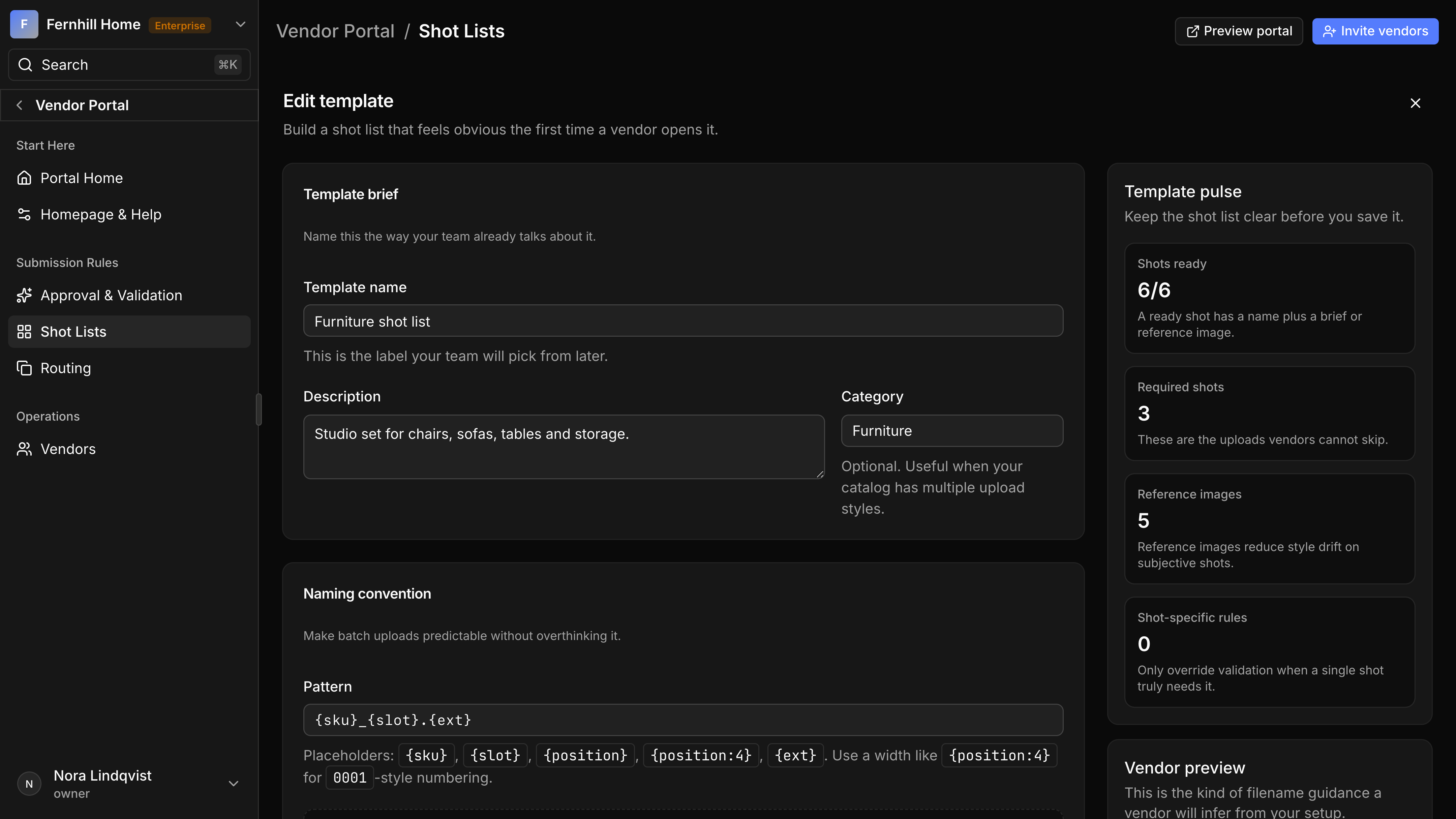
Shot lists, 17 MarchIgor's editor in the vendor portal.
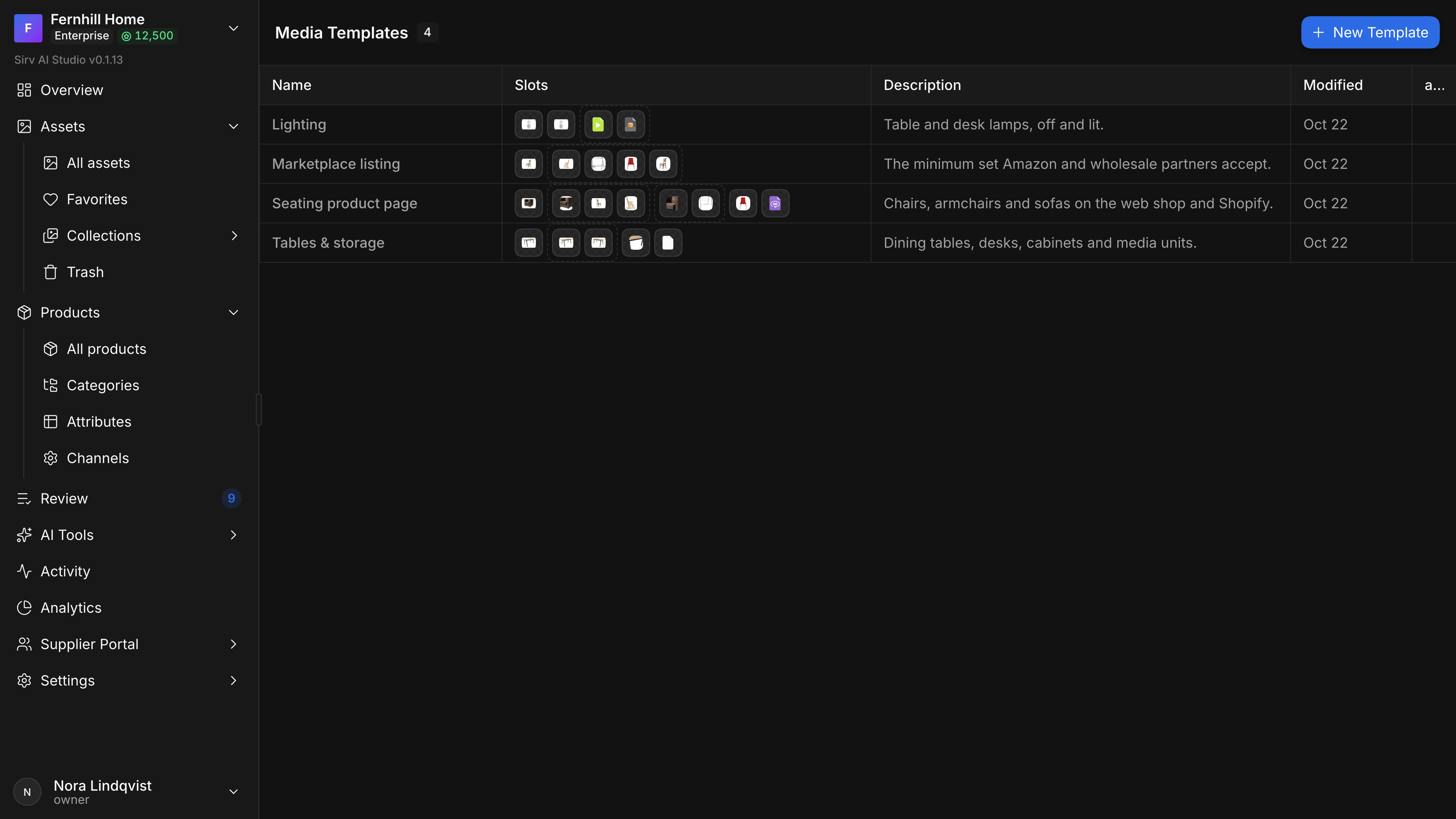
Media templatesEvery slot of every template in one strip.
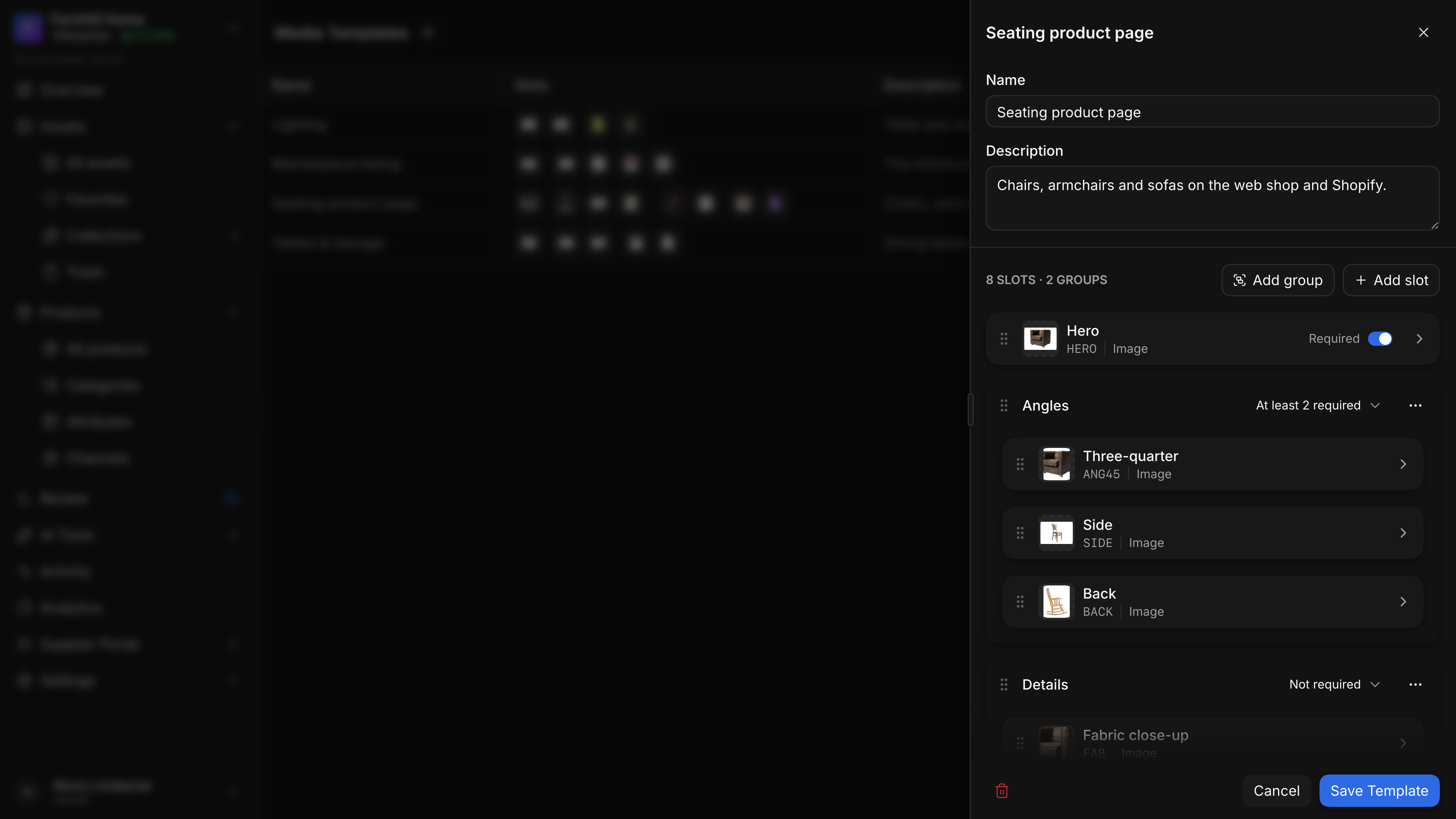
Template editorSlots in groups, with a rule per group.
Five days later the same prototype gained image specs: checks such as resolution, background or colour space with a warning value and a passing value, as a general idea for every check that has a threshold. My note to the agent was that if it worked, Igor would use it in the vendor portal.
Then I set both aside for more pressing work, the grid and the lists. Data storage and the vendor side were Igor’s at the time, and he took parts of the prototypes into his shot lists.
A screen slides from where it sits
Navigation is easier to follow when the motion says where you went. In March I moved Studio to a standard sidebar layout with settings and AI tools sliding in as sub-panels, and Igor added the first page transitions. In May, with collections arriving as a tree under assets, the motion needed rules.
The first rule was about the means.
Drop our workarounds. If this navigation can’t be animated with CSS, we don’t animate it at all.
The second was about direction. A section above the current one in the sidebar slides down into place, one below slides up. Opening a panel, settings, vendors or collections, slides right, and its title button slides back left. Tabs inside a panel follow their own order. Then, after one in the morning, I asked where that model came from.
How do we build the model of which navbar button sends the transition where? Dynamically, from the taxonomy? What if someone reorders the navbar by drag and drop?
So vertical direction comes from the order the sidebar actually renders, including pinned collections, not from a list written next to it. The next evening I asked whether this was a module or smeared across the app, and it became one registry with four rules. A panel slides in 240 ms on one curve. Every row in a tree keeps a chevron slot, even without children, so parents and leaves keep the same rhythm.
Folded, the sidebar keeps only its icons, and nothing becomes unreachable. Pointing at a section opens its contents as a menu beside it: the screens of Assets or Products, the grouped pages of the supplier portal, or anything else a section holds, down to a tree. The width is free as well: the sidebar can be dragged wider or narrower, and folds and unfolds with an animation while the table beside it keeps up.
The folded sidebar opens each section as a menu.
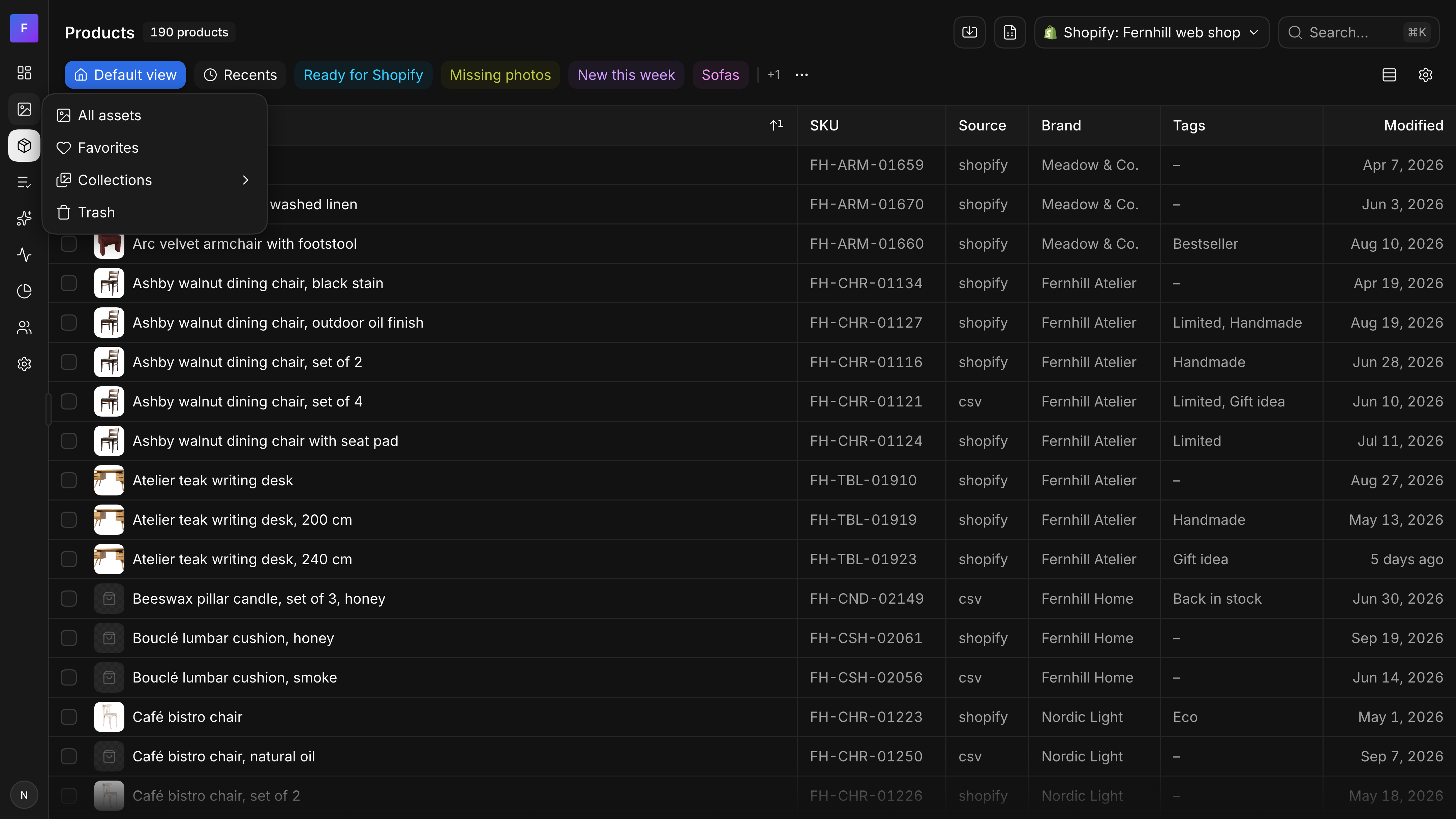
Assets, folded
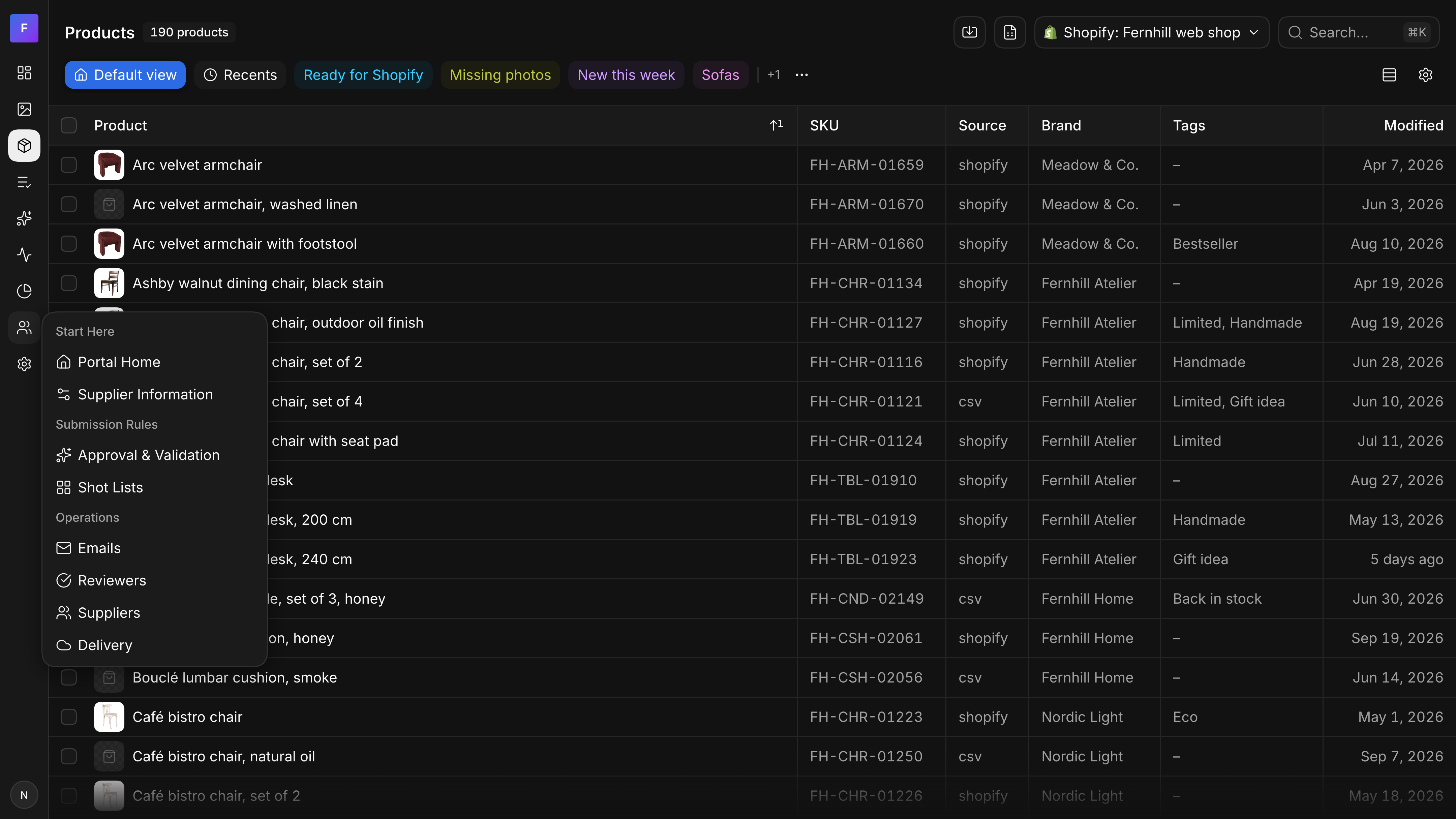
Supplier portal, folded
The sidebar from March to June.
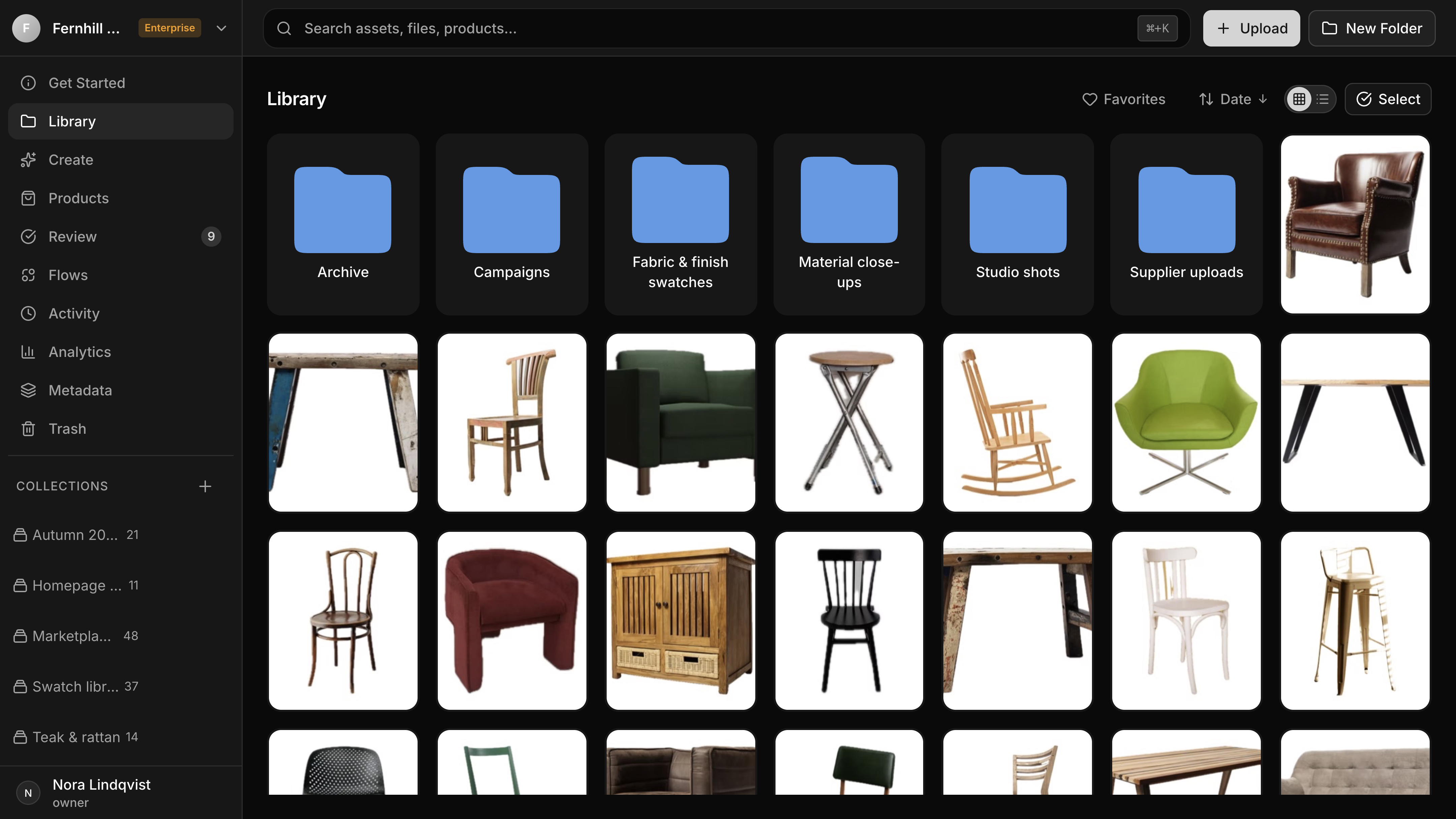
4 MarchTen sections, collections cut off.
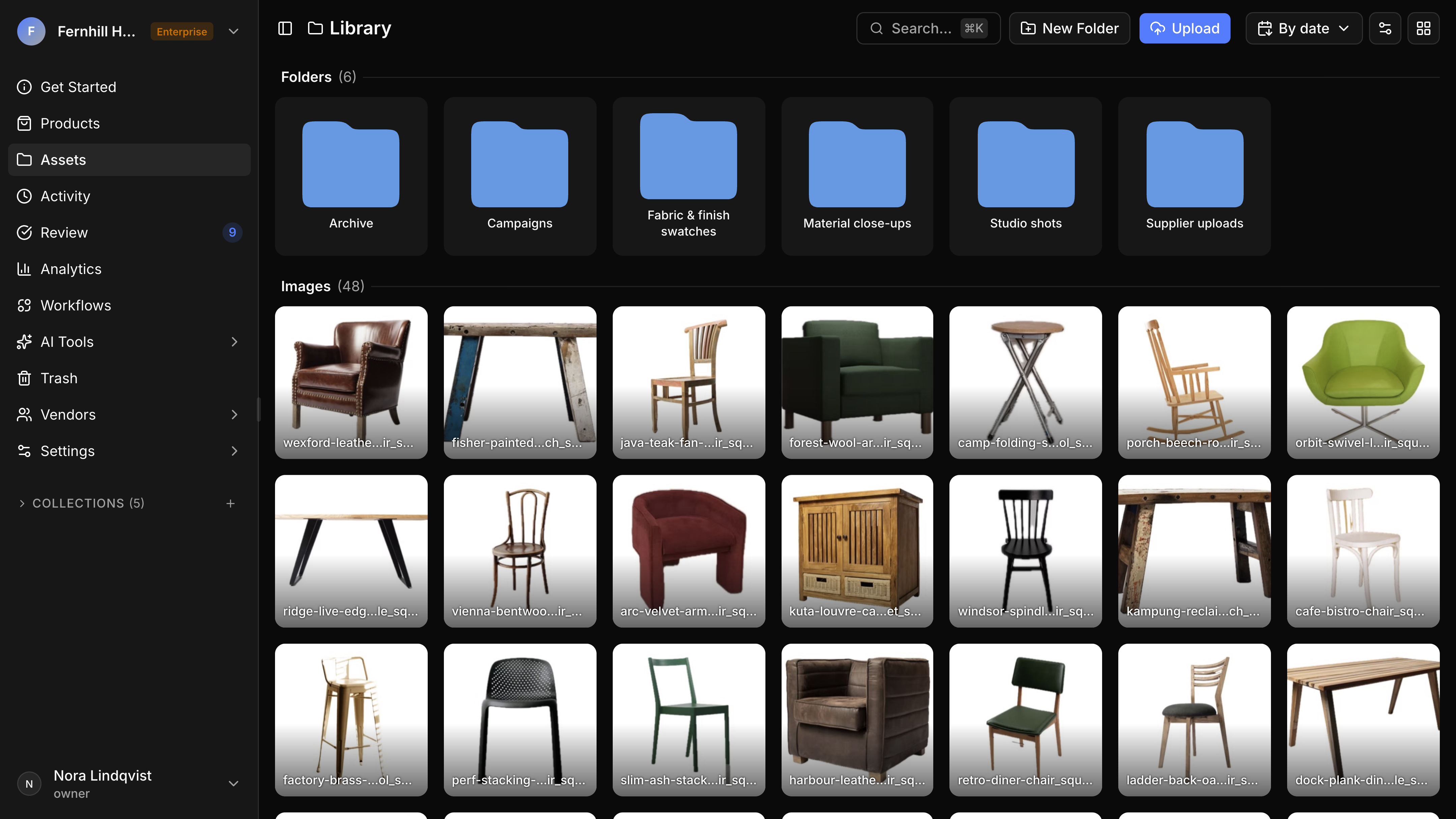
10 MarchA standard sidebar with sliding panels.
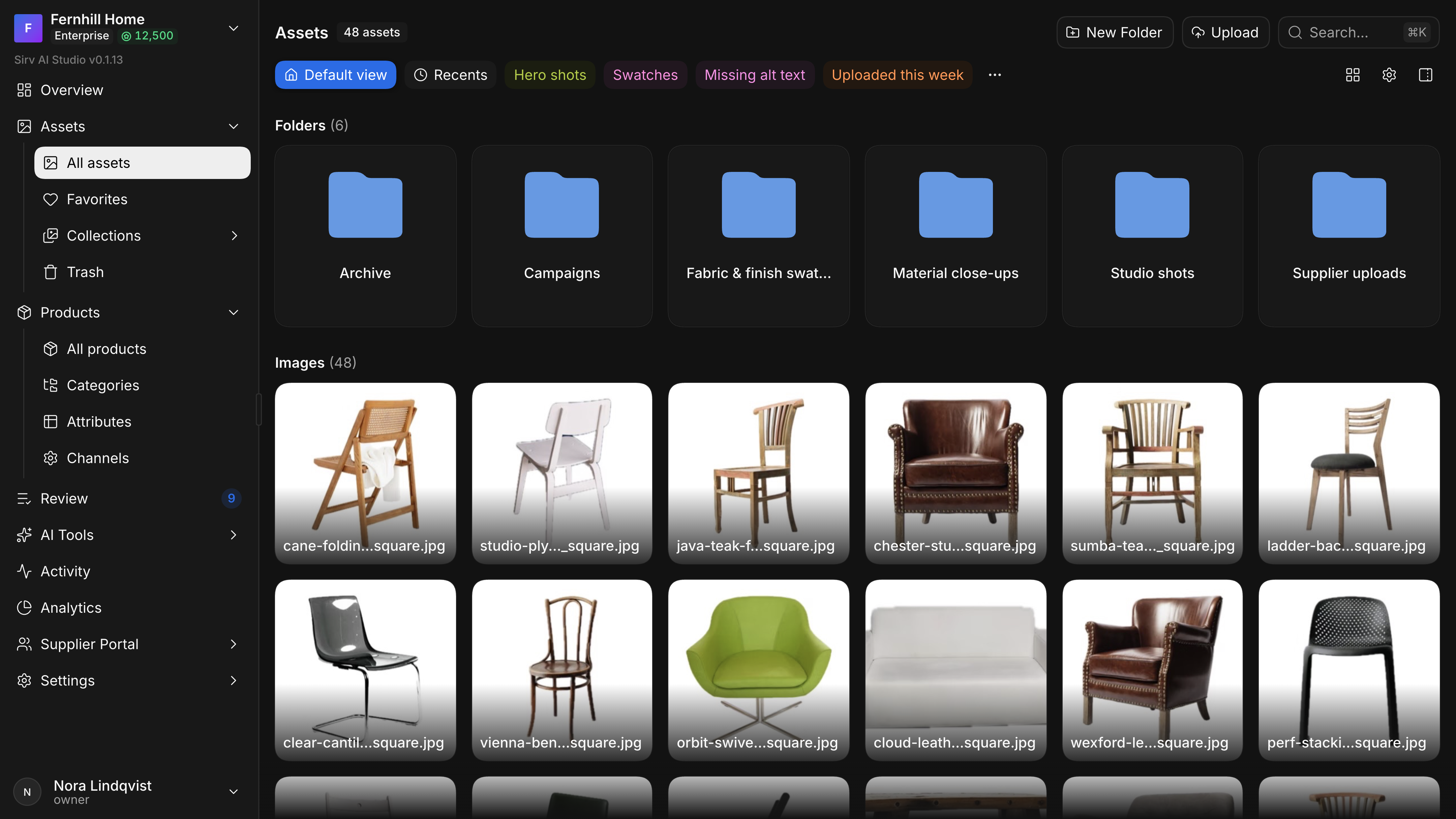
JuneSections with their own screens.
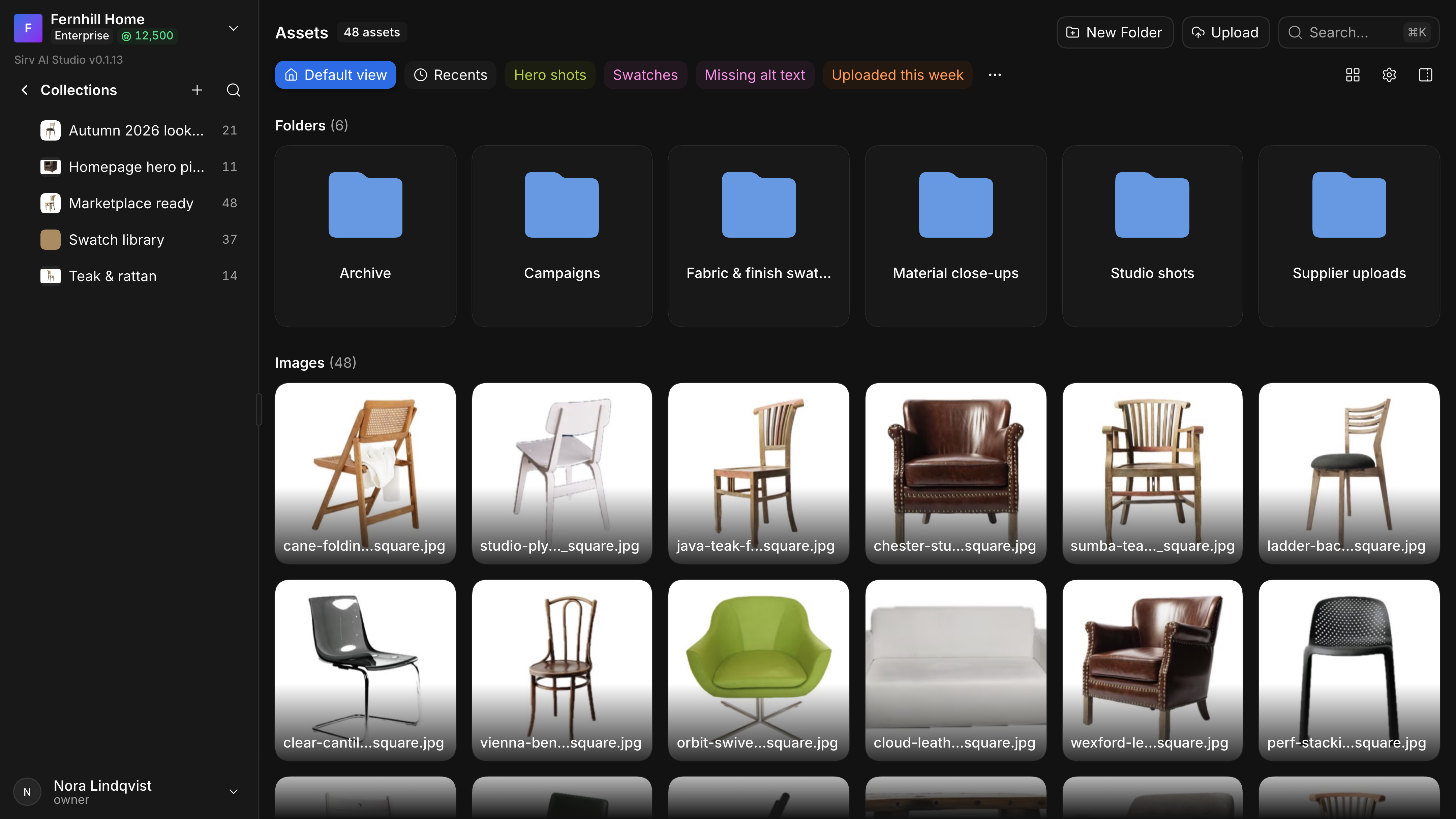
CollectionsA panel slides in from the right.
Some controls didn’t exist yet
A few controls Studio needed weren’t in shadcn or any library in the form it needed. Product types form a tree, and choosing one in a filter, a channel’s settings or a product group meant choosing from a tree: so Sid-Kit’s option list learned to render trees with search, nesting and selection that work the same as its flat lists. Sort levels became an option list with a direction toggle in each row. The query builder’s conditions read as two rows, the field and operator above the value, instead of one long line.
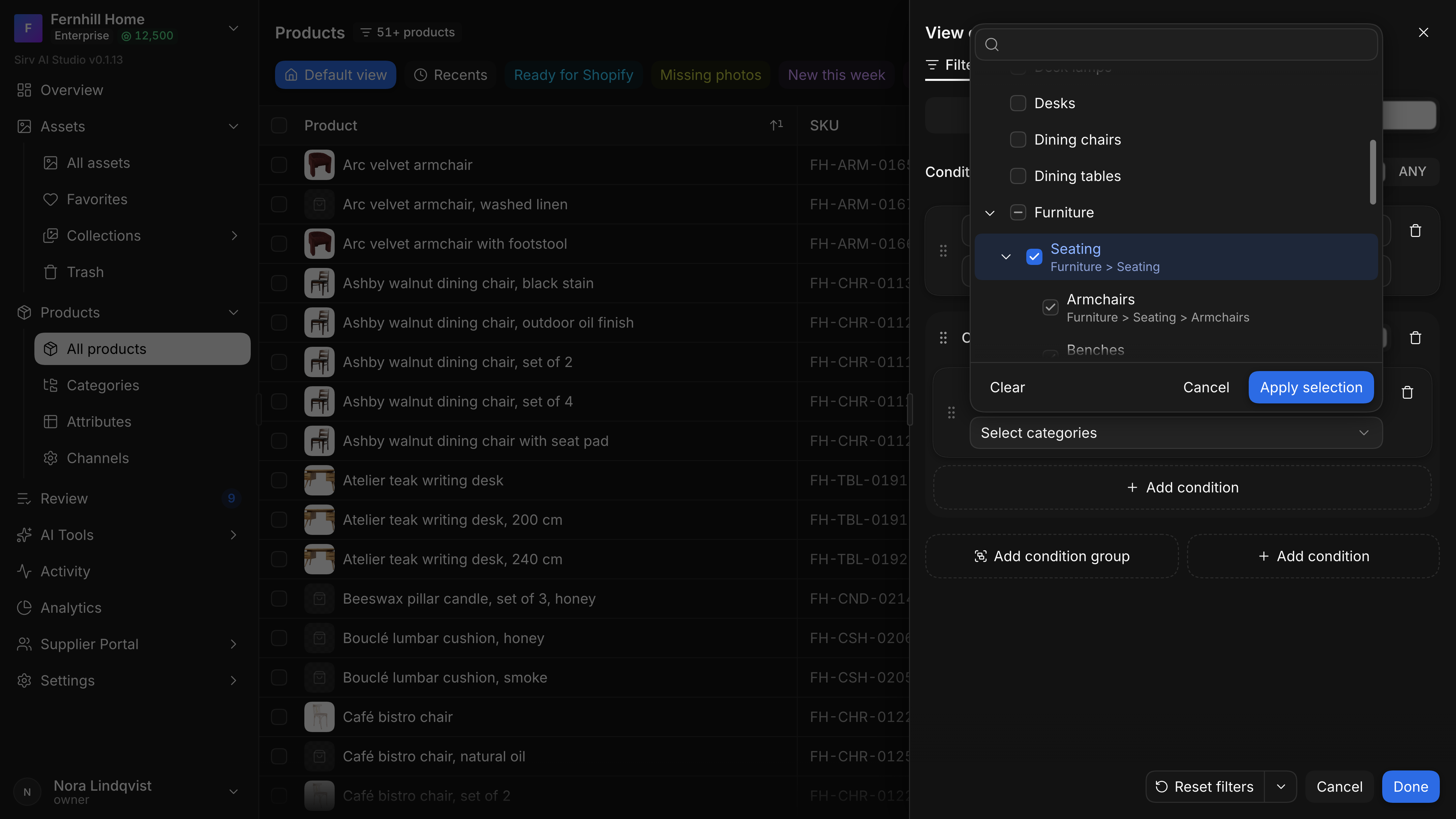
Choosing a category from the tree.
Storybook replaced Figma
For years my Figma files looked like a design system’s: a page per component, its states laid out in a grid, a table of variables and tokens. My prototypes used everything Figma could offer and lagged for it; in screencasts they passed for a real app. In Studio I stopped. Figma is a way to build something and show it to others when you can’t build it in code yet, and turning its pictures into code is the hard part that never quite works. I already knew how HTML and CSS are put together and what makes a design implementable, and with agents the code was no longer the slow part.
My design system in Figma, before Studio.
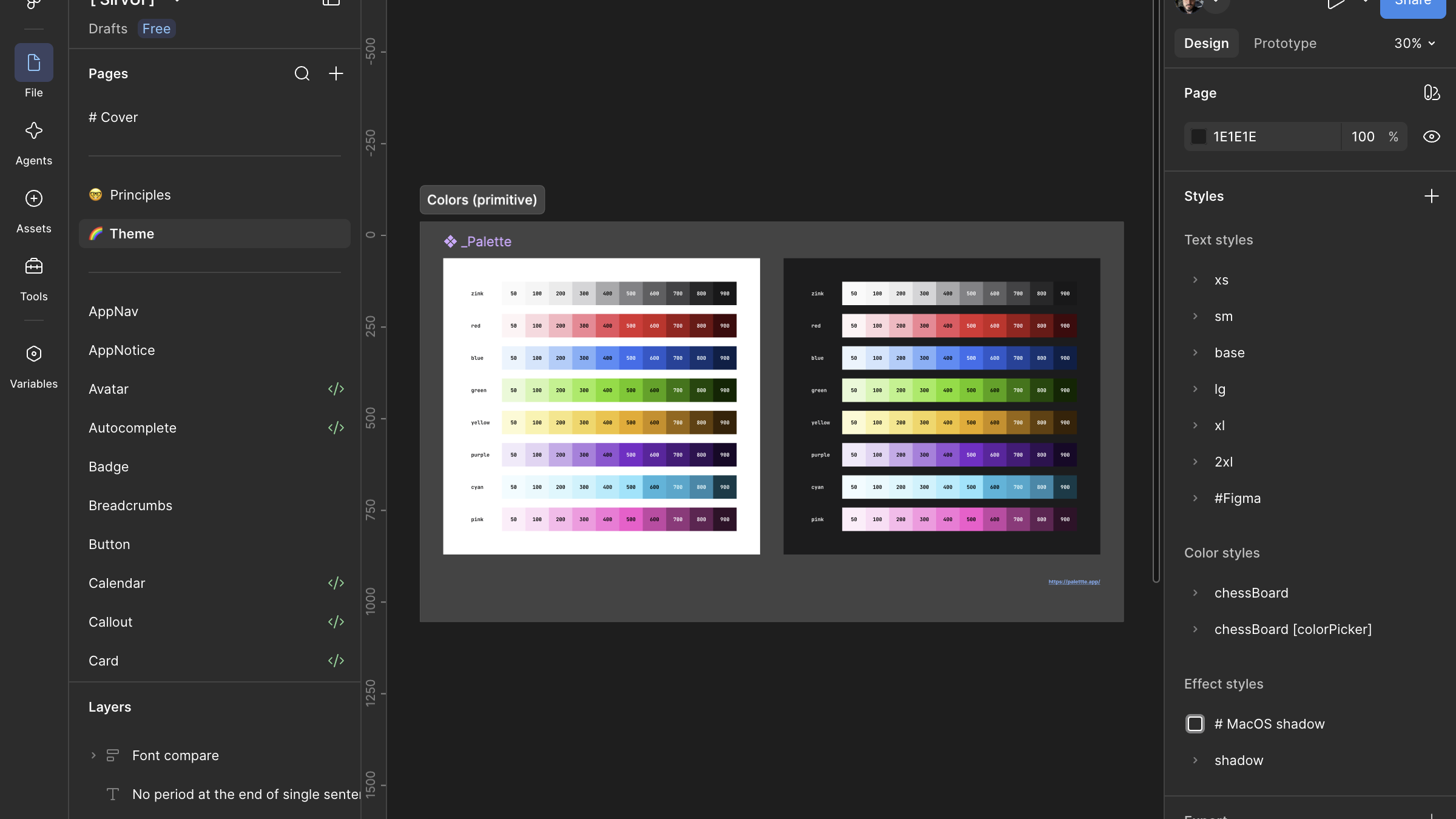
ThemePrimitive palettes, light and dark.
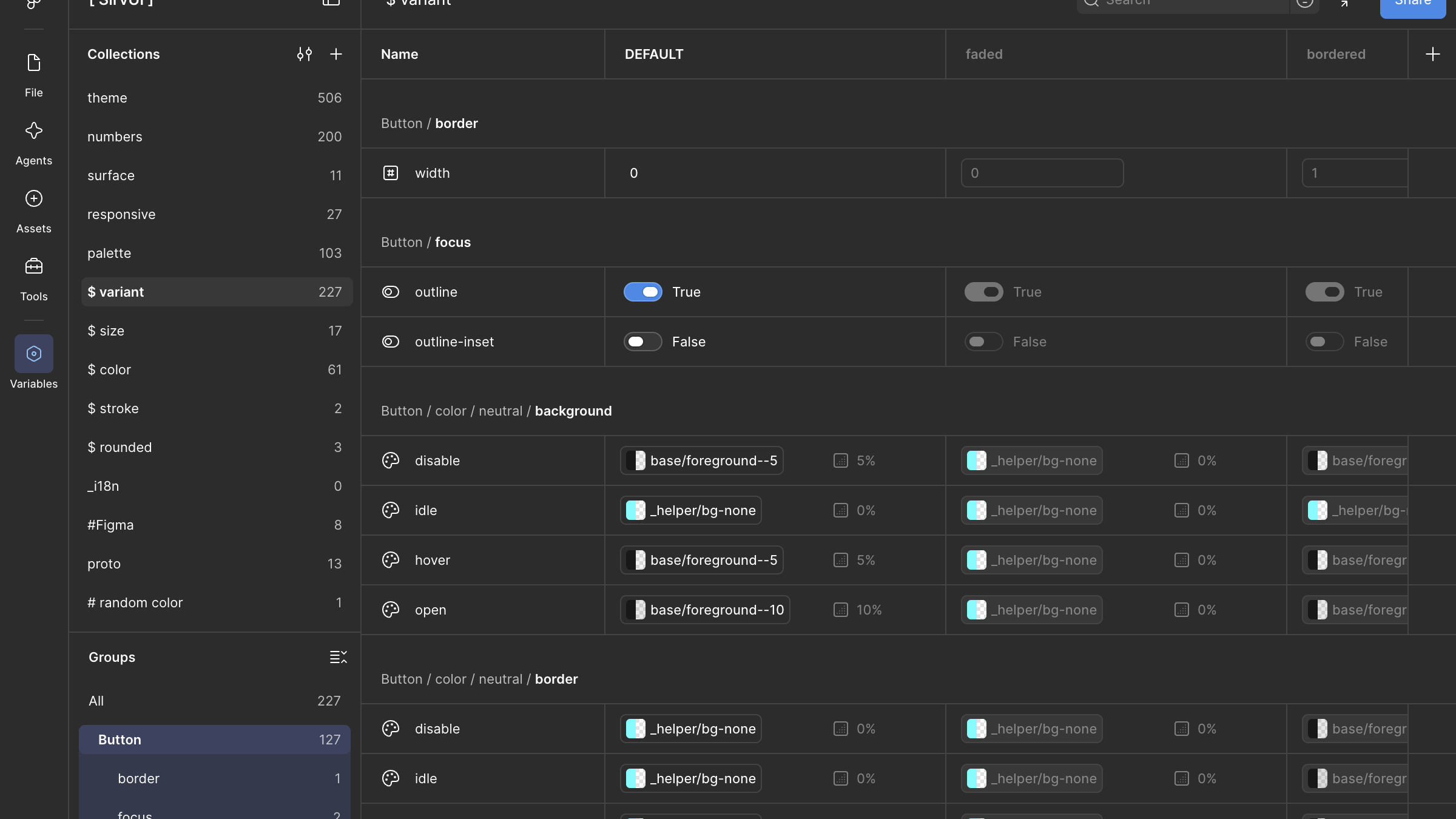
Variables227 variables for variants alone.
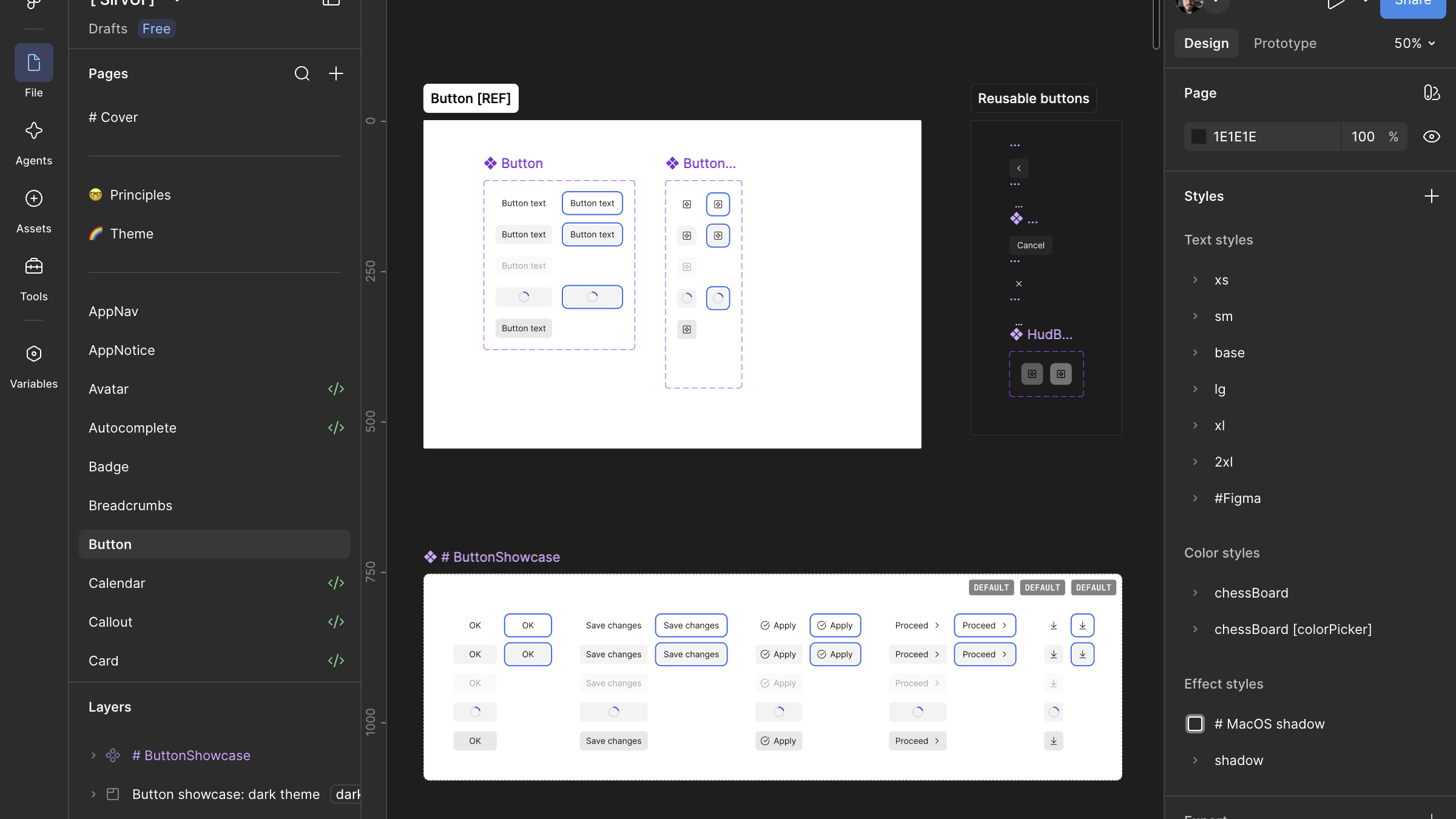
ButtonA component, its states, a showcase.
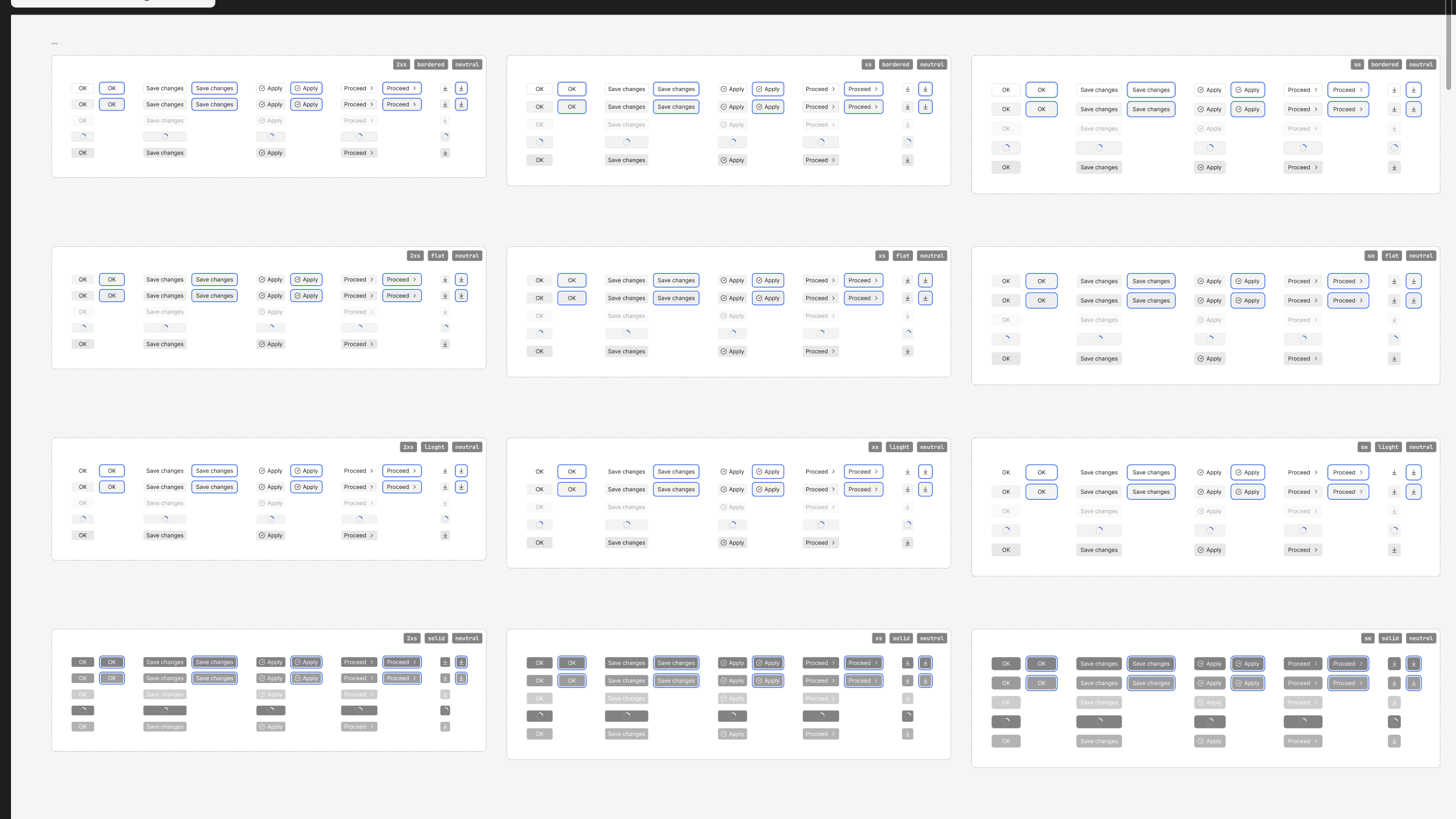
ShowcaseEvery size, variant and state laid out.
How the components were used, in Figma.
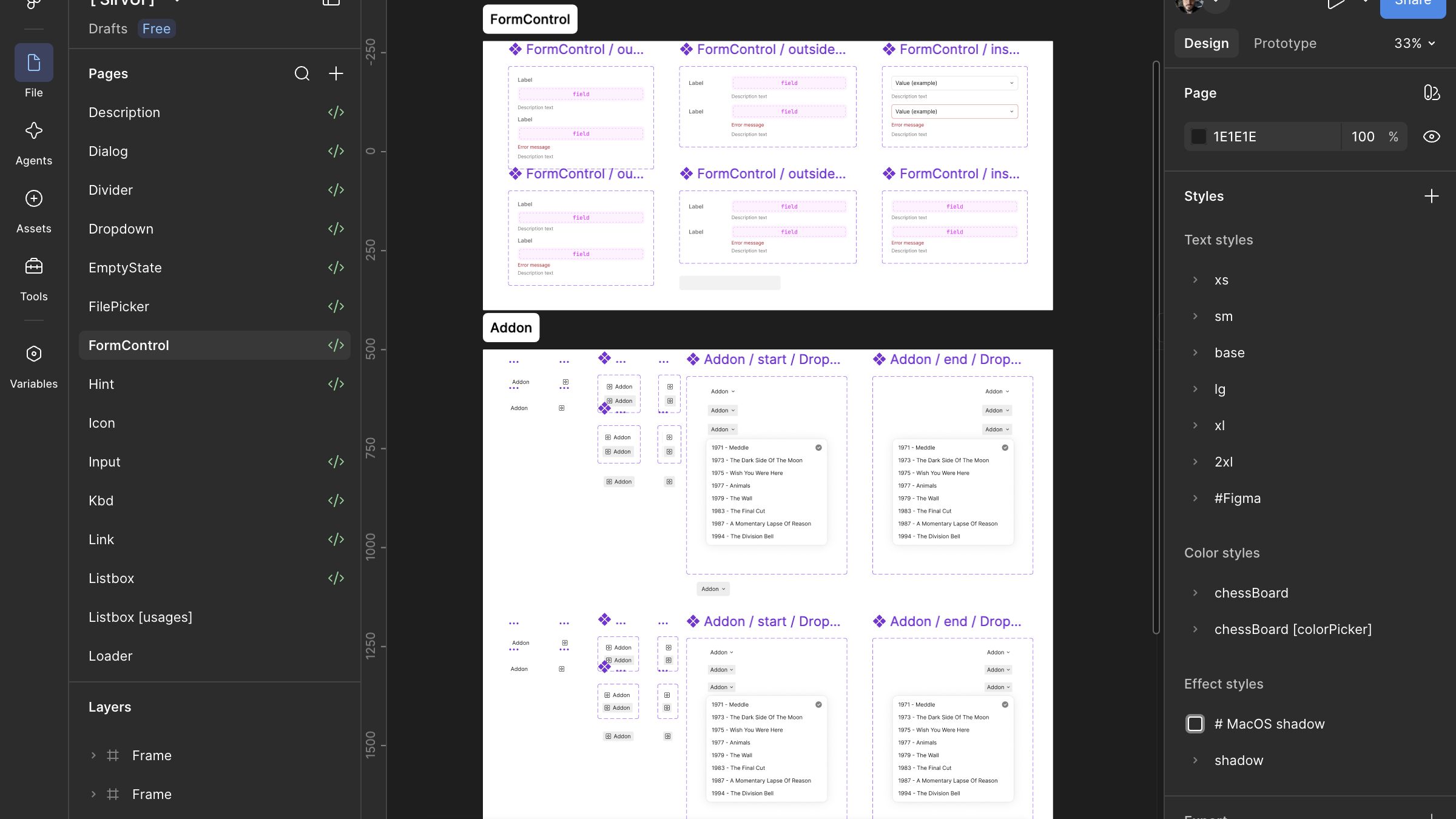
Form controlLabels, hints and add-ons.
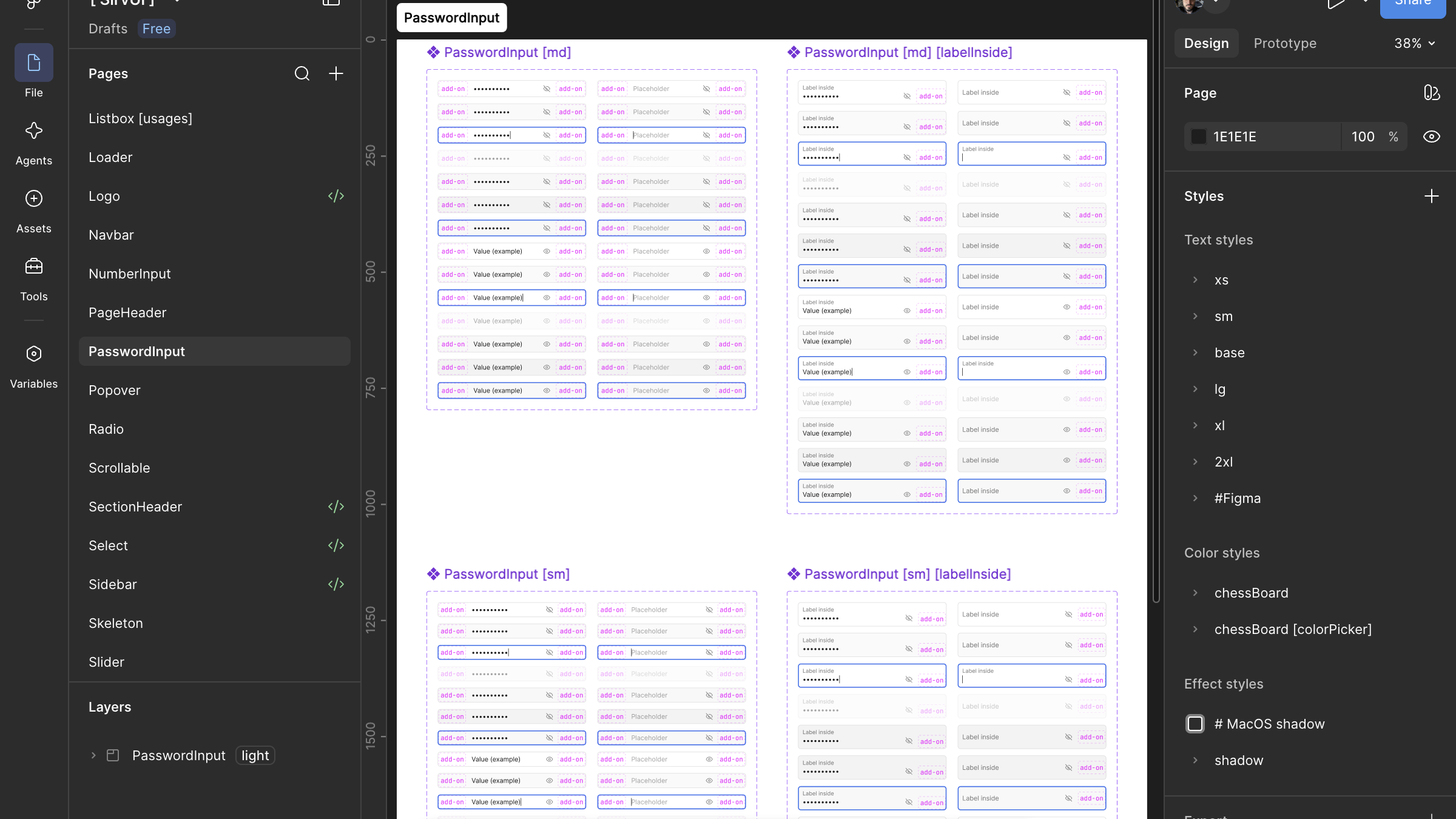
Password inputEvery state, at every size.
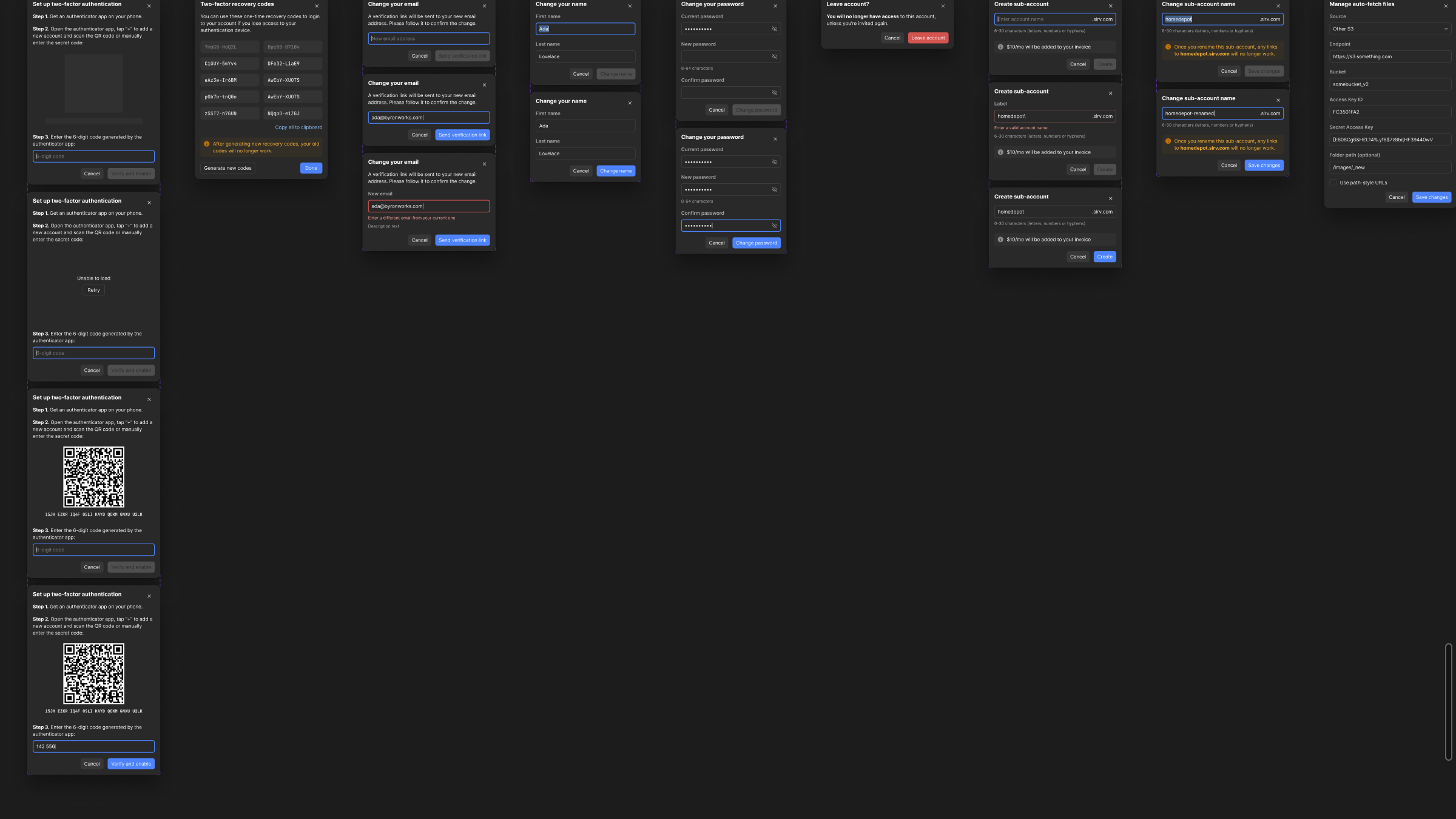
DialogsReal dialogs, state by state.
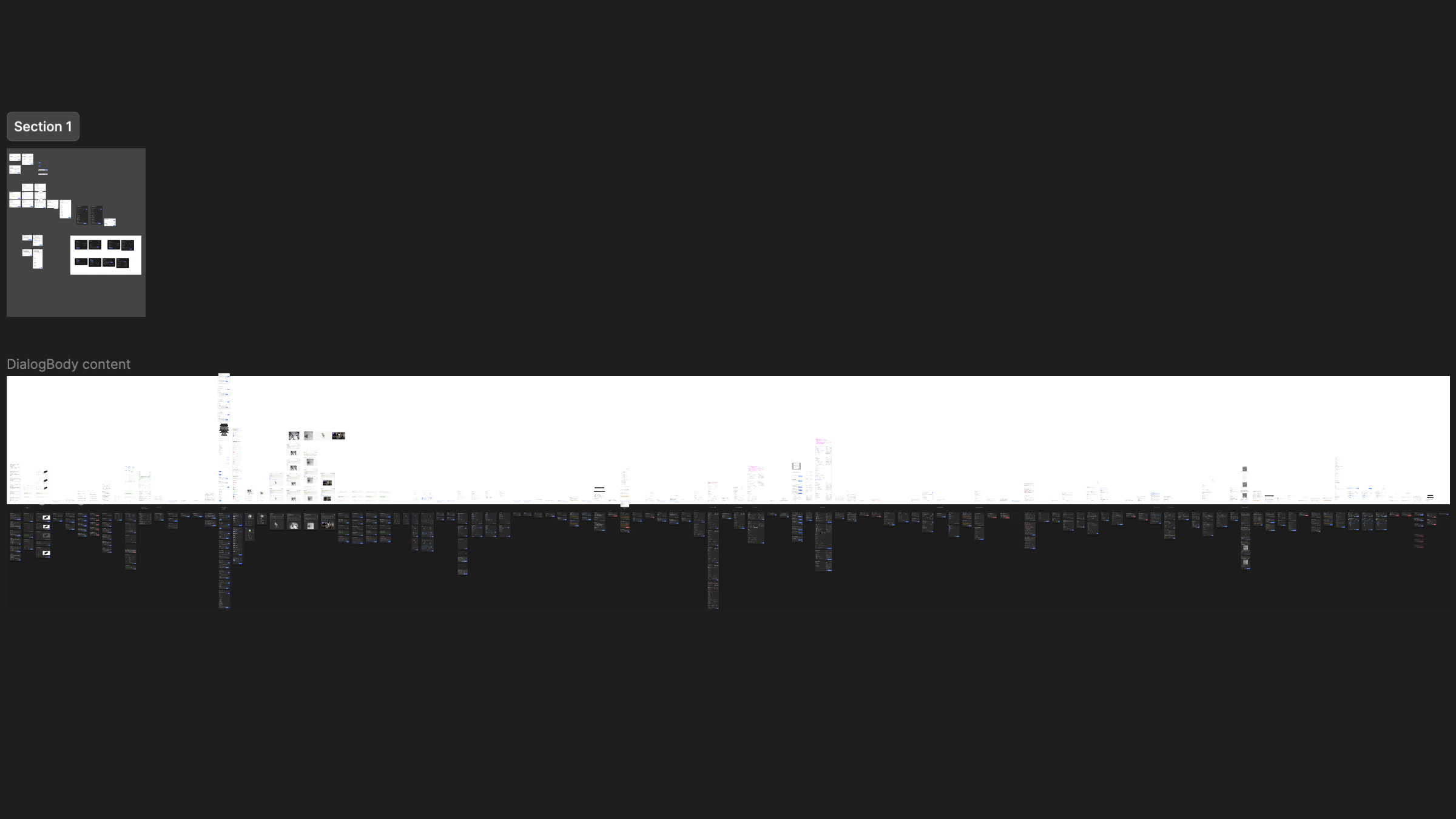
All dialogsThe whole board, zoomed out.
Storybook does the same jobs live. A component’s story lays out its main abilities and states, and they can be clicked and changed. The styling section isn’t drawn by hand: it parses the real CSS and shows each token’s name, how its parametric definition unfolds step by step, and the swatch it ends up as. A Figma table of variables is right until the code changes; this one can’t be out of date. Studio’s style pages appeared on 13 May, and Sid-Kit’s token browser on 17 June.
The same jobs in Storybook, June 2026.
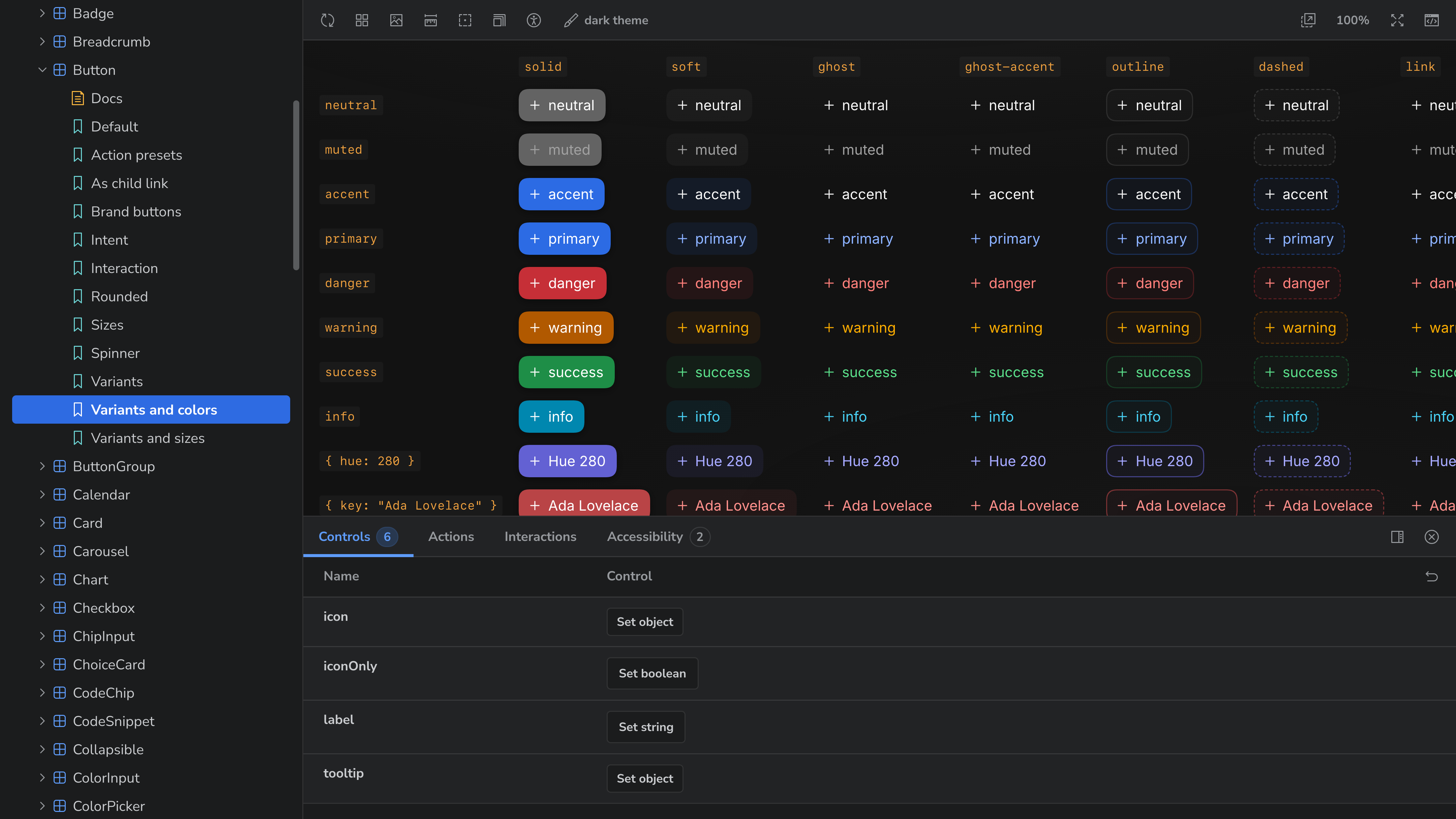
A story with controls
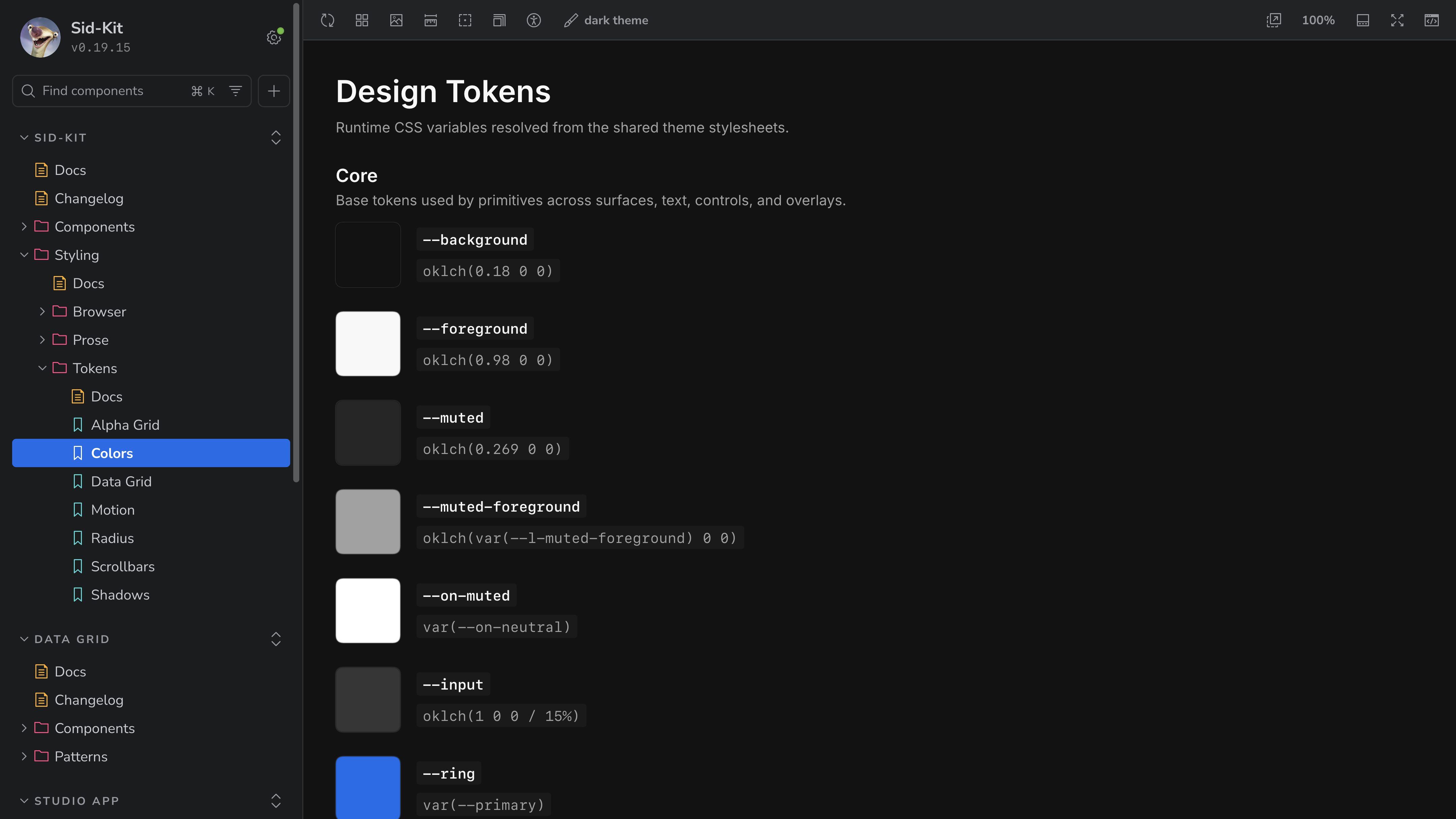
Tokens read from the CSS
Without a handover between a picture and the code, changing my mind cost what the change cost, and that is why most decisions here were made twice.
An agent has to see the screen
Spring 2026 models wrote interfaces fluently and couldn’t see them. The harnesses of the time had no browser of their own, so an agent would report a fix it had never looked at, and most of my corrections were about things on screen. In March I had Claude drive my browser through an extension and kept repeating the same request.
Can you please use the browser for debugging like this? Remember it somehow.
In April the grid got numbers: a baseline for switching between the table and the gallery, 1.3 s one way and 1.8 s the other, a profiler for the grid’s interactions and the bug button. Numbers weren’t enough, because they measured something other than what I saw.
Do you understand that you need a way to see the same thing I see, for tests and gates?
So the agent learned to look. In May it moved to an isolated browser of its own, with my browser as the last resort. In June a final screenshot became mandatory for any interface change, and empty frames and skeletons became something tests detect instead of something I report.
For everything else I recorded the screen, as I would for a person: what I do, what I expect, what’s wrong, said aloud in Russian with English UI terms. On 17 June I turned that into a skill. It extracts the audio with ffmpeg and transcribes it with Whisper running locally, with a prompt that keeps interface terms in English, into a timeline with timestamps. The agent reads the timeline first, finds where I describe the problem, and only then pulls dense frame sheets around those moments, not the whole video. Its rules are short: never look at frames without the transcript when there is speech, never guess what I meant before reading it, and write a regression test before the fix. By the next day it had processed 30 recordings.
How it was built
Studio was my first project as a developer. I’d designed interfaces for years and knew how they are built; I hadn’t shipped them myself. The practices of development came to me as answers to problems I already had. When regressions kept coming back, tests were the answer someone had already worked out; when three people worked in one repository, Git was. For about a month the stream of new things was intense. By April I noticed the load had become normal.
Interface work still needs more of my attention than architecture does. An architecture can be designed once and left with an agent for hours. An interface has to be looked at after every change, because models still produce plausible screens that are wrong in ways only a person notices. From April to June I sent Codex about 5,500 messages in Studio, after some 2,600 prompts to Claude in February to April.
Studio was built by a team of three: Igor Varyvoda, Veniamin Krachun and me. I’m grateful to Igor. He was always reachable, and when I was out of my depth he answered to the point without spoon-feeding. He brought me into development, and into development with agents in particular.
Studio’s grid and kit outgrew it: read the Data Grid case and the Sid-Kit case. Igor’s own account of Studio is at varyvoda.com.